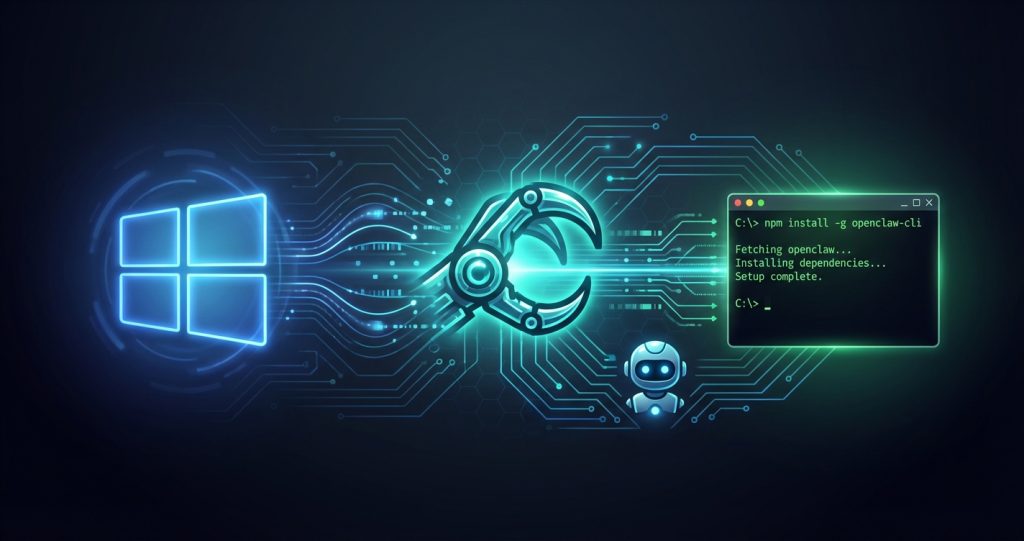
Most AI assistant setup guides assume you’re on a Mac or a Linux server. They hand you a curl | bash command and call it documentation. Windows users get two paragraphs and a shrug.
We run OpenClaw on Windows. Our main machine — a Windows 10 laptop — is the control center for an AI operation that publishes three articles a day, monitors Bitcoin prices, and sends us a morning briefing before we’ve had coffee. We figured out every Windows-specific quirk the hard way so you don’t have to.
This is the guide we wish existed when we started.
What Is OpenClaw? (Quick Context)
OpenClaw is an open-source AI assistant platform that lets you run Claude (or other models) as a persistent, task-capable agent on your own machine. Unlike chatbots that forget everything between sessions, OpenClaw maintains memory, can run scheduled cron jobs, connects to Telegram or Discord for notifications, and executes real system commands on your behalf.
Think of it less like ChatGPT and more like hiring a junior developer who lives in your terminal and actually remembers what you told them last Tuesday.
We’ve written extensively about what OpenClaw can do — check our OpenClaw Review 2026 for the full picture. This guide is purely about getting it running on Windows, which has a few specific gotchas that can trip you up.
What You’ll Need Before You Start
Here’s the honest requirements list — not the theoretical minimum, but what actually works smoothly:
- Windows 10 or 11 (64-bit). We’ve tested on Windows 10 22H2 and Windows 11 23H2. Both work fine.
- Node.js 18+. OpenClaw is a Node.js application. We run v24 and it’s rock solid.
- An Anthropic API key. OpenClaw uses Claude under the hood. Get one at console.anthropic.com. Budget $5–10/month for normal use.
- Python 3.10+ (optional but recommended). Several scripts that make OpenClaw more powerful — including image generation and web search — are Python-based.
- Git. To clone the repo and stay updated.
- PowerShell 7+ (optional but worth it). Windows PowerShell 5.1 has some quirks with multi-line commands. PowerShell 7 runs cleaner.
One thing nobody mentions upfront: OpenClaw works on Windows, but it uses PowerShell as its shell, not bash. Commands that work in every Linux tutorial need slight adjustment. We’ll cover the main ones.
Step 1: Install Node.js
Go to nodejs.org and download the LTS version. Run the installer — it’s straightforward. Accept the default installation path.
After installation, open PowerShell and verify:
node --version
npm --version
You should see something like v24.x.x and 10.x.x. If you get “not recognized,” close PowerShell and reopen it — PATH updates require a fresh session.
Hot take: Use the official installer, not winget or chocolatey. We wasted 30 minutes debugging a malformed PATH from a winget Node install. The official .msi just works.
Step 2: Install Git
Download Git for Windows from git-scm.com. During installation:
- Choose “Git from the command line and also from 3rd-party software” for PATH
- Choose “Checkout Windows-style, commit Unix-style line endings” for line endings
- Everything else: defaults are fine
Verify in PowerShell: git --version
Step 3: Clone OpenClaw
Pick where you want OpenClaw to live. We use C:\ai\openclaw — short path, easy to navigate. Avoid paths with spaces (like “My Documents”) — some Node packages don’t handle them gracefully.
mkdir C:\ai
cd C:\ai
git clone https://github.com/openclaw/openclaw.git
cd openclaw
Then install dependencies:
npm installThis takes 1–3 minutes. You’ll see a lot of output — that’s normal. If you see npm warn messages, ignore them. If you see npm error, something needs fixing.
The most common install error on Windows is about native modules that need build tools. Fix it by running (as Administrator):
npm install --global --production windows-build-toolsThen retry npm install.
Step 4: Create Your Configuration
OpenClaw needs a config file. The repo includes an example — copy it:
copy .env.example .envOpen .env in any text editor (Notepad works, VS Code is better). The critical settings:
ANTHROPIC_API_KEY=sk-ant-your-key-here
OPENCLAW_MODEL=anthropic/claude-opus-4-6
OPENCLAW_CHANNEL=terminal
OPENCLAW_WORKSPACE=C:\Users\YourName\.openclaw\workspace
A few Windows-specific notes on the config:
- Workspace path: Use forward slashes or double backslashes in the .env file. Either
C:/Users/YourName/.openclaw/workspaceorC:\\Users\\YourName\\.openclaw\\workspaceworks. Single backslashes will cause parsing errors. - API key: Copy it directly from the Anthropic console. Don’t add quotes around it in the .env file.
- Model: We use
anthropic/claude-opus-4-6for complex reasoning tasks andanthropic/claude-sonnet-4-6for faster, cheaper cron jobs. You can specify per-session later.
Step 5: Initialize the Workspace
OpenClaw keeps its memory, configuration, and project files in a workspace directory. Initialize it:
npx openclaw initThis creates the workspace folder structure:
~/.openclaw/workspace/
├── memory/          # Persistent memory files
├── config/          # Your custom configuration
├── projects/        # Active project files
└── AGENTS.md        # Your operational instructions
The AGENTS.md file is where you define how your AI agent should behave — its responsibilities, what it can do autonomously, and what requires your approval. We spent weeks refining ours. Start with the defaults and customize as you learn what you actually need.
Step 6: Run OpenClaw for the First Time
npx openclaw startYou’ll see the OpenClaw banner and a prompt. Type something to test it:
What's today's date and what can you do?If it responds coherently, you’re in business. If you get an API error, double-check your key in .env.
Here’s what other Windows setup guides don’t tell you: the first cold start is slow. OpenClaw loads the model context, reads workspace files, and initializes memory. This takes 5–15 seconds. Subsequent requests are much faster. Don’t assume it’s broken just because the first response takes a moment.
Step 7: Connect Telegram for Notifications (Recommended)
Running OpenClaw through a terminal window is fine for testing. For real use — especially if you want cron jobs and background agents — connecting Telegram changes everything. You can message your AI from your phone, get proactive alerts, and have it report back when tasks complete.
We covered this in detail in our OpenClaw Telegram integration guide. The short version:
- Create a Telegram bot via BotFather — takes 2 minutes
- Add
TELEGRAM_BOT_TOKEN=your-bot-tokento your.env - Add
OPENCLAW_CHANNEL=telegramto your.env - Restart OpenClaw and message your bot
Once connected, you don’t need to keep a terminal window open. OpenClaw runs in the background and surfaces through your phone. This is the setup we actually use day-to-day.
Step 8: Set Up as a Windows Service (Optional but Worth It)
If you close the terminal, OpenClaw stops. To keep it running persistently — especially if you want cron jobs to fire while you’re not at your desk — set it up as a Windows service using node-windows or PM2.
We use PM2. Install it globally:
npm install -g pm2
npm install -g pm2-windows-startup
Then start OpenClaw through PM2:
pm2 start "npx openclaw start" --name openclaw
pm2 save
pm2-windows-startup install
Now OpenClaw starts automatically when Windows boots. Check its status anytime:
pm2 status
pm2 logs openclaw
This is the setup that enables our cron job automation. Cron jobs are worthless if the process dies every time you close your laptop lid.
Windows-Specific Quirks to Know
We hit every one of these. You might too.
SSH Authentication Doesn’t Work With Paramiko on Password Auth
If your OpenClaw setup needs to SSH into remote servers (we SSH into our DigitalOcean droplet for WordPress management), the built-in Windows SSH client doesn’t handle password authentication reliably in non-interactive scripts. Use Python’s paramiko library instead:
pip install paramiko

import paramiko
ssh = paramiko.SSHClient()
ssh.set_missing_host_key_policy(paramiko.AutoAddPolicy())
ssh.connect('your-server-ip', username='root', password='your-password')
stdin, stdout, stderr = ssh.exec_command('your-command')
print(stdout.read().decode())
We have this pattern baked into dozens of scripts. It’s rock solid where Windows SSH is flaky.
PowerShell vs Bash Command Syntax
OpenClaw’s documentation examples are mostly bash. In PowerShell:
&&(bash chain) → Use;in PowerShell, or separate commandsexport VAR=value(bash env) →$env:VAR = "value"in PowerShellcat file | grep pattern→Get-Content file | Select-String pattern/dev/null→$nullin PowerShell
OpenClaw is aware it’s running on Windows and uses PowerShell for exec commands. This actually works fine — just know that if you’re adapting commands from Linux tutorials, these translations matter.
Long Path Support
Windows has a 260-character path limit that occasionally causes issues with deeply nested Node modules. Enable long paths:
# Run as Administrator in PowerShell
Set-ItemProperty -Path 'HKLM:\SYSTEM\CurrentControlSet\Control\FileSystem' -Name LongPathsEnabled -Value 1
Or in Group Policy: Local Computer Policy → Computer Configuration → Administrative Templates → System → Filesystem → Enable Win32 long paths.
Python Script Execution Policy
If OpenClaw tries to run Python scripts and gets blocked, you may need to adjust PowerShell’s execution policy:
Set-ExecutionPolicy -ExecutionPolicy RemoteSigned -Scope CurrentUserThis allows local scripts to run while still requiring remote scripts to be signed. It’s the right balance between security and functionality.
Configuring Memory and Persistence
One of OpenClaw’s best features is persistent memory — it remembers context across sessions. On Windows, this works through LanceDB (OpenClaw’s native memory plugin) stored in your workspace directory.
Memory categories to understand:
- Factual memory — Things it should always know (your email, your tech stack, your preferences)
- Project memory — Active project state in
memory/active-projects.md - Corrections — Mistakes it made that it should never repeat, in
memory/corrections.md - Handoff notes — State from the last session in
memory/handoff.md
Seed your memory early. We spent the first week in constant correction mode because the agent didn’t know our setup. Now, a session starts and within 30 seconds it knows our server IP, our email accounts, our WordPress setup, our code stack, and our publishing workflow. That’s the value of memory done right.
Your First Automation: A Daily Morning Briefing
Once OpenClaw is running, here’s a practical first automation that takes about 10 minutes to set up and immediately proves the value.
Create a cron job for a daily 9am briefing. In OpenClaw’s cron configuration:
{
  "id": "morning-briefing",
  "schedule": "0 9 * * *",
  "task": "Check the current Bitcoin price and 24h change, then search for any major AI tool launches in the past 24 hours. Send me a briefing summary via Telegram.",
  "model": "anthropic/claude-sonnet-4-6"
}
At 9am every day, your phone gets a message. No apps to open. No dashboards to check. Just the information you actually wanted.
We expanded this into a full content intelligence pipeline — our AI content pipeline guide walks through how we scaled from morning briefings to three auto-published articles per day.
Connecting to Your Workspace Files
OpenClaw’s real power comes from giving it access to your actual projects. In your AGENTS.md file, you define what it’s responsible for:
# My OpenClaw Agent

## Responsibilities
- Monitor computertech.co for broken links daily
- Draft content when major AI tools launch
- Alert me to significant Bitcoin movements

## Can Do Autonomously
- Update existing articles
- Fix broken links
- Run research queries

## Ask Me First
- Publish new content live
- Spend money
- Delete anything
This file is the key to having an agent that’s actually useful rather than one that either does nothing autonomously or does too much. The boundary between “just do it” and “ask first” is something you refine over time.
For more on structuring autonomous AI workflows, check our guide on building an AI employee that works 24/7.
Troubleshooting Common Windows Issues
OpenClaw Won’t Start: “Cannot find module” Error
Run npm install again in the OpenClaw directory. This usually means a dependency wasn’t installed cleanly the first time.
API Calls Timing Out
Check your Windows Firewall settings. Some corporate Windows setups block outbound HTTPS on non-standard ports. Also verify your API key is valid at console.anthropic.com.
Memory Not Persisting Between Sessions
Verify your workspace path in .env uses the correct format (forward slashes or escaped backslashes). Also make sure OpenClaw has write permissions to the workspace directory — if it’s in a system folder, you may need to run as administrator or move the workspace.
PM2 Service Not Starting After Reboot
Make sure you ran pm2 save after starting OpenClaw, then pm2-windows-startup install. Check the PM2 logs at ~/.pm2/logs/ for specific errors.
Cron Jobs Not Firing
Cron jobs only run while OpenClaw is active. If you’re not using PM2 or a Windows service, cron jobs stop when you close the terminal. Also verify your cron expression using a validator like crontab.guru — invalid expressions fail silently.
What to Expect: Honest Performance Notes
We’re not going to paint you a perfect picture. Here’s what running OpenClaw on Windows actually looks like after several months:
What works great: Scheduled tasks, Telegram integration, file operations, web research, SSH to remote servers via paramiko, content generation. These all run without issues.
What’s occasionally finicky: The first session of the day sometimes takes 20–30 seconds to fully initialize — especially if the machine was sleeping. Not a dealbreaker, just worth knowing.
What’s genuinely impressive: Memory persistence. We’ve had the same OpenClaw instance running for months. It knows our setup, our preferences, our ongoing projects. Starting a new session doesn’t feel like starting from zero — it feels like picking up a conversation with someone who actually remembers what you’ve been working on.
Compared to cloud-based AI agent platforms like AgentGPT or Auto-GPT’s hosted versions, the local setup requires more initial work but gives you control cloud services don’t. Your data stays on your machine. Your API costs are predictable. You’re not dependent on someone else’s infrastructure.
What to Build First
The biggest mistake new OpenClaw users make is setting it up and then not giving it enough to do. Here’s what we’d build in the first week, in order of effort vs. payoff:
- Daily briefing cron job (30 min) — Immediate visible value
- Telegram connection (15 min) — Makes everything accessible from your phone
- Website monitoring (1 hour) — Daily check of your site’s critical pages for 404s and load issues
- Research assistant (ongoing) — Configure it to know your niche and research topics on demand
- Content drafting workflow (2–3 hours) — If you publish content, this is where OpenClaw pays for itself
Each of these builds on the last. By the end of week one, you’ll have a system that actually does things — not just a chatbot that answers questions.
Frequently Asked Questions
Does OpenClaw work on Windows 10, or do I need Windows 11?
It works on both. We run the main instance on Windows 10 22H2 with no issues. Windows 11 also works — there’s no functional difference for OpenClaw’s purposes.
How much does OpenClaw cost to run?
OpenClaw itself is free and open source. You pay for the AI model API — typically Claude via Anthropic. Normal personal use costs $5–20/month. Heavy automation with multiple daily cron jobs runs $20–50/month depending on model choice. Using Claude Sonnet for cron jobs and Claude Opus for complex reasoning keeps costs reasonable.
Do I need to keep my computer on 24/7 for cron jobs to work?
For cron jobs to fire reliably, yes — OpenClaw needs to be running. If you want overnight automation, either keep your machine on or run OpenClaw on a server (we use a DigitalOcean droplet for server-side tasks). Your Windows machine can be the control interface while the heavy lifting happens on a VPS.
Can OpenClaw access the internet?
Yes. OpenClaw can search the web, fetch URLs, and interact with external APIs through its tool system. You can also give it custom scripts — we use a DuckDuckGo search script for unlimited free searches and the Anthropic model for research synthesis.
Is my data safe? Does OpenClaw send data anywhere?
Your conversations go to Anthropic’s API (same as using Claude.ai directly). Your workspace files, memory, and configuration stay local on your machine. OpenClaw itself doesn’t have any telemetry or data collection beyond what Anthropic’s API logs.
Can multiple people use the same OpenClaw instance?
Not really, and we wouldn’t recommend it. OpenClaw’s memory and workspace are personal — they contain your context, your credentials, your project state. It’s designed as a personal AI assistant. For team use, each person should have their own instance.
How does OpenClaw compare to running Claude directly in the browser?
Claude.ai in a browser is conversational — great for one-off questions. OpenClaw adds persistence (it remembers across sessions), automation (cron jobs run without you), tool use (real file access, shell commands, API calls), and integration (Telegram, Discord, webhooks). It’s a fundamentally different use case. We use both — Claude.ai for quick lookups, OpenClaw for anything that needs to happen reliably over time.