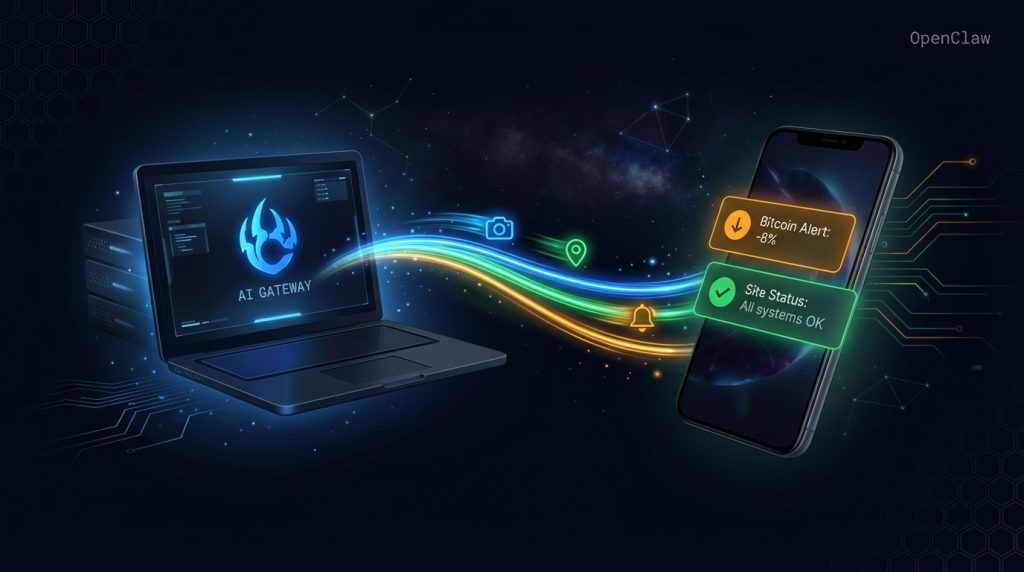
You’re on site. Twelve-hour shift. Your phone buzzes — and it’s your AI assistant telling you that a competitor just published a review you need to respond to, your website is throwing 500 errors, and Bitcoin dropped 8% overnight. You didn’t ask for any of this. It just knew.
That’s what OpenClaw Node Pairing actually does. It’s not a cute feature — it’s the difference between an AI that lives on your laptop and one that follows you everywhere. We’ve been running it for months at computertech.co, and it fundamentally changed how we interact with our automation stack when we’re away from the desk.
This guide covers everything: what nodes actually are, how pairing works, what you can do once connected, and the specific workflows we’ve built around mobile AI control. If you’re already using OpenClaw and haven’t set up node pairing yet, you’re leaving the best part on the table.
What Is OpenClaw Node Pairing?
OpenClaw’s nodes are paired devices — phones, tablets, or secondary computers — that connect to your Gateway instance and give the AI bidirectional access to those devices. Once paired, your AI assistant can:
- Send push notifications directly to your phone
- Take camera snapshots (front or back) on demand
- Read your phone’s notifications
- Access device info, battery, connectivity status
- Get your real-time location
- Screen record on the paired device
The practical translation: your AI can see through your phone’s camera, push you critical alerts anywhere in the world, and read what’s happening on your device — all triggered by cron jobs, webhook events, or direct commands in your session.
Think of it like giving your AI a body. Before node pairing, OpenClaw is a brain in a box — brilliant, but stationary. After pairing, it can reach into the physical world, get your attention on the go, and react to real-world context. It’s the difference between a smart home hub that only works when you’re home and one that follows you to work.
The Node Pairing Architecture (How It Actually Works)
OpenClaw runs a Gateway service on your machine — a persistent background process that handles all AI sessions, cron jobs, and tool execution. When you pair a mobile device, the OpenClaw mobile app (or companion app) connects to your Gateway over the internet via an authenticated WebSocket tunnel.
Your Gateway gets assigned a public endpoint (via the configured gatewayUrl) — this is how your phone reaches back to your laptop or server regardless of what network either is on. The pairing process generates a time-limited token that authenticates the device, and from that point forward, your AI can invoke nodes tool calls targeting that device by name or ID.
The security model here matters: devices are approved, not just connected. When a new device requests pairing, it shows up as a pending node and requires explicit approval from the Gateway before any commands can be issued. You’re not accidentally granting camera access to a random device.
What the Connection Looks Like in Practice
From within an OpenClaw session or a cron job, you target a node like this:
nodes(action="notify", node="sawyer-iphone", title="BTC Alert", body="Price down 9% — $71,400", priority="timeSensitive")That fires a push notification to the paired device, bypassing Telegram or any other messaging layer entirely. It lands directly on your lock screen, system notification center — wherever your phone surfaces alerts.
Camera access works similarly:
nodes(action="camera_snap", node="sawyer-iphone", facing="back")Your AI gets a snapshot from the device camera. Useful for monitoring setups, security checks, or any workflow where visual context from the phone’s location matters.
Step-by-Step: Setting Up Node Pairing
Step 1: Confirm Your Gateway Is Running
Node pairing requires an active, publicly accessible Gateway. Run this to check status:
openclaw gateway statusYou need a gatewayUrl configured that’s reachable from outside your local network. If you’re running OpenClaw on a laptop behind a home router, you’ll need either a reverse proxy, a tunneling service (like Cloudflare Tunnel or ngrok), or to be on the same network as the device during initial pairing. For permanent setups, a VPS-hosted Gateway is cleaner.
Step 2: Install the OpenClaw Companion App
The mobile companion handles the device-side of the pairing. Get it from the OpenClaw GitHub releases page at github.com/openclaw/openclaw or the docs at docs.openclaw.ai. iOS and Android builds are both available.
Once installed, open the app and navigate to the pairing section. You’ll get a pairing request code or QR — this is the token that identifies your specific device to your Gateway.
Step 3: Approve the Pending Node
Back on your desktop session, the device shows up as pending. Approve it:
nodes(action="pending")This lists any devices awaiting approval. Then:
nodes(action="approve", deviceId="YOUR_DEVICE_ID")Once approved, the node is registered and available for tool calls. You can verify it’s live:
nodes(action="status")You’ll see your device listed with its connectivity status, last seen time, and available capabilities.
Step 4: Test the Connection
Send a test notification to confirm everything’s wired up:
nodes(action="notify", node="YOUR_NODE_NAME", title="Test", body="Node pairing working. You're operational.", priority="active")If that hits your phone, you’re done with setup. Takes about 10 minutes start to finish on a clean install.
What You Can Actually Do With a Paired Node
Here’s where it gets interesting. Node pairing isn’t one feature — it’s a capability layer that unlocks a whole class of workflows that aren’t possible with a desktop-only setup.
Smart Push Notifications From Cron Jobs
This is the killer use case. Instead of relying on Telegram messages (which require opening the app), you can fire native system notifications directly to your phone from any cron job or automated workflow.
We have a morning briefing cron that runs at 6 AM and, among other things, fires a notification with the current BTC price and any urgent site issues. It lands on the lock screen before we’ve touched Telegram. No app switching, no “did I miss that message?” — it’s in the system notification center, timestamped, persistent until dismissed.
The priority parameter matters here. Options include passive, active, and timeSensitive. Set critical alerts (site down, major price moves) to timeSensitive — on iOS, this bypasses Focus modes and Do Not Disturb. Set daily summaries to passive so they don’t interrupt you mid-shift.
If you’re building out automated workflows, the complete guide to OpenClaw cron jobs covers the scheduling layer that drives these notifications.
Camera Snapshots for Remote Monitoring
Point your phone at something, ask your AI to snap a photo, and have it analyze the image. This sounds gimmicky until you find a real use for it. Some legitimate ones we’ve seen:
- Office/workspace monitoring: Prop a spare phone as a security camera. Your AI can take periodic snapshots and flag anything unusual.
- Product photography: Ask your AI to snap a reference shot of a physical product while you’re describing it, so it has visual context for writing copy.
- Document capture: Take a photo of handwritten notes and have the AI transcribe and process them.
Both front and back cameras are accessible. You can also request short video clips:
nodes(action="camera_clip", node="YOUR_NODE_NAME", facing="back", durationMs=5000)Location-Aware Automation
Your AI can request your device’s current location and use it to trigger or contextualize workflows:
nodes(action="location_get", node="YOUR_NODE_NAME", desiredAccuracy="balanced")Practical uses: automatically switching between “on-site” and “home” workflow modes based on your location, triggering different briefing content when you arrive at work vs. leaving for the airport, or logging location context to notes automatically.
We run a simple check — if location shows as Fort McMurray instead of Calgary, the daily briefing prioritizes different content (less “build this today,” more “here’s what to review when you’re back”).
Reading Device Notifications
Your paired device can surface its notification queue to the AI:
nodes(action="notifications_list", node="YOUR_NODE_NAME")The AI can then read, act on, or dismiss notifications programmatically. This is useful for building monitoring workflows where you want your AI to catch important alerts from other apps even when you’re not actively checking your phone.
Combine this with an agent that monitors for keywords — like your bank app’s fraud alerts, or a specific client name appearing in a notification — and you’ve got a secondary filter layer that doesn’t require constant phone checking.
Screen Recording and Device Health
For more advanced debugging scenarios, your AI can trigger screen recordings on the paired device and check device health metrics (battery, storage, connectivity). This is more useful for IT and developer workflows, but if you’re building apps or testing something that runs on mobile, having your AI grab a screen recording on demand is genuinely useful.
The Workflows We Actually Run
Theory is cheap. Here’s what’s actually running in our setup:
The On-Shift Alert Stack
We’re on twelve-hour shifts. Phone is the primary device. Our AI runs these node-based alerts:
- 6:15 AM (shift start): TimeSensitive notification — BTC price, overnight site traffic, any 5xx errors in the last 8 hours, top article by traffic.
- Hourly during business hours: Silent passive notification if any new AI tool launches are detected. Doesn’t interrupt — just queues in notification center for review during breaks.
- Triggered: If site goes down (monitored by separate cron), fires timeSensitive alert immediately regardless of time.
- 6:00 PM (shift end): Active notification — summary of the day’s content output, any pending tasks, Bitcoin close price.
The whole stack runs without us touching anything. The AI knows where we are (via location check) and adjusts notification priority accordingly. On travel days, everything downgrades to passive so the phone isn’t going off every hour at the airport.
The monitoring piece specifically is built on the patterns from our website monitoring guide — worth reading if you want the full automated uptime setup.
The Content Intelligence Feed
One of our background crons runs competitor and keyword monitoring through a sub-agent. When it finds something actionable — a competitor published a review of a tool we haven’t covered, or a keyword we rank for just got a featured snippet stolen — it fires a node notification with a summary and a suggested action.
We don’t have to check dashboards. The AI tells us when something needs attention. This is the compound effect of combining the sub-agent orchestration layer with node delivery.
The Morning Camera Check
This one’s simple: during our morning briefing cron, the AI snaps a quick front-facing camera image and runs a basic “are you awake and at your desk” check before delivering the full briefing. If it detects the photo was taken in a dark room (middle of the night or still in bed), it flags the briefing as low-priority passive instead of firing the full alert sequence.
Sounds extra. It’s actually useful when your schedule is variable and cron jobs don’t always know if you’re awake yet.
Node Pairing vs. Just Using Telegram
Fair question: why not just use Telegram notifications? We do both. But they’re not the same thing.
| Feature | Node Notifications | Telegram Messages |
|---|---|---|
| Bypasses Focus/DND | Yes (timeSensitive) | No |
| Requires app open | No — system notification | Yes — Telegram app |
| Rich formatting | Limited (title + body) | Full markdown, media |
| Two-way interaction | No (notification only) | Yes (full conversation) |
| Device camera access | Yes | No |
| Location context | Yes | No |
| Persistent until dismissed | Yes | No (message flow) |
The honest take: Telegram is better for conversations and rich content delivery. Node notifications are better for time-critical alerts that need to cut through. We use both — Telegram for daily summaries and content we want to read at leisure, node notifications for anything that needs an immediate human eyeball.
If you haven’t set up the Telegram integration yet, the OpenClaw Telegram setup guide covers that side of the stack.
Advanced: Using Nodes in Custom Skills
If you’re building custom OpenClaw skills (the modular instruction sets that extend AI capabilities), you can wire node calls directly into skill logic. This means your AI can automatically deliver mobile alerts as part of any workflow you build.
A skill that monitors a specific RSS feed could, instead of just logging results, fire a push notification when it finds a match. A skill that tracks competitor pricing could alert you the moment a price changes. The skill handles the research and filtering logic; node delivery is just the last-mile step.
The custom skills development guide covers the full skill architecture — but the short version is that any skill can call the nodes tool the same way any other tool call works in the system.
Here’s a pattern we use in a content monitoring skill:
<!-- Skill SKILL.md excerpt -->
After checking for new competitor articles:
- If competitor count > 0: call nodes(action="notify", priority="active",
  title="Competitor Alert", body="{count} new articles found — review needed")
- If no activity: log silently, no notification
The AI understands conditional notification logic naturally — you don’t need complex branching code, just clear instructions in the skill definition about when to notify and at what priority level.
Troubleshooting Node Pairing Issues
Device Shows Pending But Won’t Approve
Usually a Gateway connectivity issue. Confirm your gatewayUrl is reachable from the device’s network. Try loading the Gateway health endpoint from your phone’s browser — if it times out, the tunnel or proxy isn’t working. Check your Cloudflare Tunnel or ngrok status first.
Notifications Not Arriving
Check three things: (1) App notification permissions on the device — iOS/Android both require explicit notification permission for each app. (2) Focus modes or DND settings — unless you’re using timeSensitive priority, notifications may be silenced. (3) The node status showing as connected in your Gateway — a disconnected node won’t throw an error in some configurations, it just silently drops.
Camera Snap Returns Error
Camera access requires explicit app permission on both iOS and Android. Go to your device’s app settings and confirm camera permission is granted to the OpenClaw companion app. On iOS 17+, you may also need to allow camera access “always” rather than “while using app.”
Location Data Is Stale
Location is fetched on-demand, not streamed continuously. If you need current location, make the call when you need it rather than caching the result. The locationTimeoutMs parameter controls how long the call waits for a fresh GPS fix — increase it if you’re getting stale coarse-accuracy results.
What OpenClaw Node Pairing Is Not
Here’s what other reviews don’t tell you: node pairing is a tool invocation system, not a full remote desktop or MDM solution. Your AI can fire discrete actions — take a photo, send a notification, check location — but it’s not streaming your screen in real time or providing always-on surveillance.
That’s actually the right design. Full MDM-style access would be a security nightmare and a privacy liability. The current model gives you useful, targeted capabilities without turning your phone into a surveillance endpoint. Each action requires an explicit tool call, which means every node interaction is logged, auditable, and intentional.
It also means node pairing won’t replace dedicated monitoring tools for scenarios that need persistent observation. If you want a proper security camera, use a security camera. If you want your AI to occasionally snap a reference photo or fire a critical alert — that’s exactly what this is for.
Node Pairing + The Bigger OpenClaw Stack
Node pairing is most powerful when it’s the output layer for a broader automation stack, not a standalone feature. The mental model that works for us:
- Cron jobs — trigger autonomous AI work on a schedule
- Sub-agents — do the actual research, analysis, content work
- Memory system — persist context across sessions so the AI knows what it was doing
- Node notifications — deliver the important outputs to the human, wherever they are
If you build that stack, you have something close to an AI employee that operates autonomously and only interrupts you when something genuinely needs human attention. That’s the goal of the 24/7 AI employee setup we documented — node pairing is what makes “works while you sleep” actually reach you when it matters.
The memory system guide is worth reading alongside this one — persistent memory is what allows the AI to remember that you’re on a 12-hour shift and adjust notification behavior accordingly, rather than needing to re-explain your schedule every session.
Who Should Set Up Node Pairing
If you’re running OpenClaw as a purely desktop workflow and you’re always at your computer when things matter — you might not need this right now. Node pairing shines when:
- You’re frequently away from your desk (on-site work, travel, remote fieldwork)
- You have time-sensitive alerts where missing a Telegram message matters
- You want AI-driven workflows that don’t require you to actively monitor a dashboard
- You’re building automation that should be “fire and forget” with human escalation only when needed
If you’re a solopreneur running a content or e-commerce business from a phone half the time, this feature is basically purpose-built for you. The OpenClaw solopreneur stack guide has more on building a lean, mobile-first automation setup.
Frequently Asked Questions
Does OpenClaw node pairing work on both iOS and Android?
Yes. The OpenClaw companion app supports both platforms. iOS and Android have slightly different permission models for notifications, camera, and location — iOS requires more explicit permission steps, but both platforms fully support the core node capabilities including push notifications, camera access, and location services.
Can I pair multiple devices to one OpenClaw Gateway?
Yes. Each device gets its own node ID after pairing and approval. You can target specific devices by name in tool calls, or broadcast to all paired nodes simultaneously. Common setups include a primary phone plus a secondary tablet or a spouse/team member’s device if you’re sharing the automation stack.
Is my camera being accessed without my knowledge?
No. Camera access only happens when an explicit nodes(action="camera_snap") tool call is made — either by you directly in a session or by a cron job/skill you’ve configured. The system doesn’t maintain persistent camera access. You can audit every camera call in your Gateway logs, and the mobile app will typically show a camera indicator when the lens is active.
Does node pairing work if my Gateway is on a home laptop that’s not always on?
Node pairing requires your Gateway to be running and reachable. If your laptop is sleeping or offline, the AI can’t reach the node. For reliable always-on pairing, hosting the Gateway on a VPS or cloud server (we use DigitalOcean) ensures it’s always available. Alternatively, you can run the Gateway on a spare machine that stays powered.
What happens to node notifications if my phone is offline?
Notifications are queued on the push notification infrastructure and delivered when the device comes back online, subject to platform-specific queuing limits. For truly time-sensitive alerts where delivery timing matters, combine node notifications with a Telegram backup — if the push notification matters, send both.
Can I use node pairing for automated photo evidence in affiliate workflows?
Yes, within reason. The camera_snap feature can be used to capture reference images for content workflows — photographing physical products, capturing screenshots of physical setups, etc. The images are delivered to the AI session as attachments and can be used for analysis, alt text generation, or content creation like any other image input.
How do I remove a paired device?
Devices can be rejected or removed via the Gateway node management interface. Running nodes(action="reject", deviceId="DEVICE_ID") or the equivalent config panel action deauthorizes the device immediately. The companion app on the device will show as disconnected and will need to go through the pairing flow again to reconnect.