Most people install OpenClaw, fire off a few messages, and think they’re done. They’re not even close.
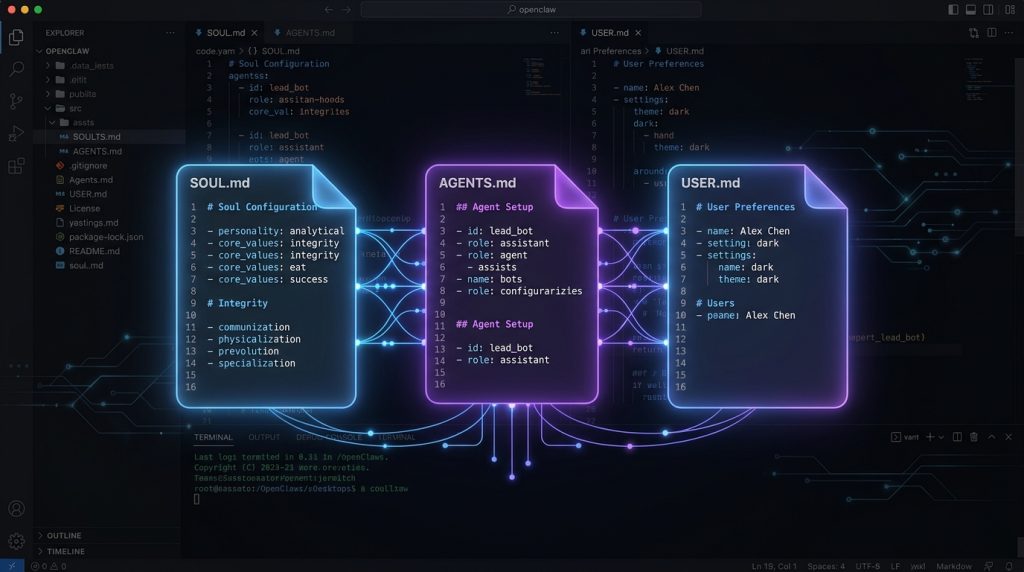
The real power of OpenClaw isn’t the LLM connections or the cron jobs or the Telegram integration — it’s the workspace files. Three plain-text files sitting in a folder that transform a generic AI assistant into something that actually knows who you are, what you’re building, and how you think.
We’ve been running OpenClaw as our primary AI operation layer for over a year. The single biggest productivity unlock wasn’t a new skill or a fancy model swap — it was getting our workspace files dialed in. This guide covers exactly how we set them up and why it makes a measurable difference.
What Are OpenClaw Workspace Files?
OpenClaw reads a set of Markdown files from your workspace directory every session. These aren’t config files in the traditional sense — they’re not JSON schemas or YAML maps. They’re plain English documents you write to tell the AI who it is, who you are, and how to behave.
The core three:
- SOUL.md — The AI’s identity and personality
- AGENTS.md — Operational rules and autonomous permissions
- USER.md — Your profile, context, and preferences
Think of it like onboarding a new employee. SOUL.md is the job description and culture fit guide. AGENTS.md is the operations manual. USER.md is the brief on the person they’ll be working with. Together, they collapse weeks of “getting to know you” friction into zero — every single session.
There are also supporting files like SYSTEMS.md for architecture context, TOOLS.md for tool-specific notes, and IDENTITY.md for visual/avatar config — but SOUL, AGENTS, and USER are the foundation. Get those right and everything else falls into place.
SOUL.md: Give Your AI a Personality That Doesn’t Suck
Here’s what other OpenClaw guides don’t tell you: a vague SOUL.md is worse than no SOUL.md at all. If you write something like “be helpful and professional,” you’ll get the blandest AI responses imaginable — the GPT equivalent of a corporate press release.
A good SOUL.md is specific, opinionated, and a little uncomfortable to write because it forces you to actually decide what you want from your AI partner.
The anatomy of a SOUL.md that works
Here’s the structure we use:
# SOUL.md — Who I Am

**Name:** [AI name]
**Vibe:** [2-sentence personality brief]

## Philosophy
- [Core operating principle 1]
- [Core operating principle 2]
- [Anti-sycophancy rule — this one matters more than you think]

## Personality
[Write this like a character brief for a TV show, not a LinkedIn bio]

## Communication
- Length: [your preference]
- Formatting: [bullets? headers? plain prose?]
- Tone: [how direct?]
The anti-sycophancy rule deserves its own paragraph. By default, AI assistants are trained to be agreeable. They’ll validate weak ideas, soften criticism, and tell you what you want to hear. For a personal assistant helping you run a business, that’s actively dangerous. We explicitly write into SOUL.md that the AI should push back when something doesn’t add up — not with diplomatic hedging, but with actual friction. “That’s a bad idea because X, here’s what I’d do instead.”
It felt weird to write at first. It’s now the most valuable line in the file.
Personality specificity matters
Generic: “Be friendly and casual.”
Specific: “Talk like a tradesman who happens to know code — not a consultant who read a blog about blue collar life. Swear when it fits. Reference real things — camp food, tool talk, hockey. Energy of a roughneck who found a cheat code, not a Silicon Valley bro.”
The second version produces responses that sound like an actual person. The first produces responses that sound like a chatbot trying to seem relatable. Specificity is the whole game.
Setting your AI’s strategic lens
One section that most people skip: give the AI a prioritization hierarchy. We include a line like “Priority: [Project A] revenue > [Project B] growth > everything else.” This means when we ask a vague question like “what should I work on today,” the AI doesn’t treat all activities as equal — it filters everything through the same lens we use.
This is the difference between an AI that restates your options and one that gives you a recommendation.
AGENTS.md: The Operations Manual That Runs Your Business
SOUL.md handles personality. AGENTS.md handles authority. It answers one question in granular detail: what is the AI allowed to do without asking me first?
This is the file that determines whether OpenClaw is a reactive tool you query or a proactive operator that gets things done. The difference is massive in practice.
The permission split: “Just Do It” vs “Ask First”
We structure AGENTS.md with two explicit lists. The “just do it” list covers actions where asking would create more friction than value:
- Update published articles (stats, broken links, 404 fixes, image optimization)
- Draft content on major launches (save as draft, don’t publish)
- Submit to Google Indexing API after publish/update
- Create/modify cron jobs and scheduled tasks
- Fix bugs immediately when spotted
- Research sub-agents running in parallel (competitors, keywords, tool launches)
- Clean up memory files, upgrade prompts and workflows
The “ask first” list covers actions where the cost of being wrong is high:
- Publishing in interactive sessions (cron pipeline = autonomous, direct chat = needs approval)
- Spending money beyond free tiers
- Strategic pivots or changes to revenue settings
- Destructive actions
The mental model: “Is this an established direction or a new direction?” Established → act and report. New → propose first.
Responsibility areas
Beyond permissions, AGENTS.md defines what the AI is actively responsible for monitoring. Ours covers:
- Content Intelligence — Track AI tool launches, draft reviews, find keyword gaps, spot competitor moves
- Strategy — Keep the big picture, surface neglected projects, zoom out when we’re deep in tactics
- Technical — Site maintenance, config, code review for orphaned functions and missing error handling
- Operations — Morning briefings, calendar prep, workflow friction removal
Writing these down forces clarity. Before we had AGENTS.md, the AI would wait to be asked about competitor launches. After, it proactively surfaces them because that’s explicitly in its job description.
Memory and continuity rules
OpenClaw sessions don’t automatically persist context — each session starts fresh unless you build continuity mechanisms. AGENTS.md is where we define those:
## Memory System
Write IMMEDIATELY: decisions → memory/handoff.md
Plans → memory/active-projects.md
Lessons → memory/lessons.md
Auto-save every 10 min during complex work.
After 2+ hours of complex work → suggest /new, log to handoff.md.
This is how we get continuity across sessions. The AI writes decisions to structured files during the session, and those files are available at the start of the next session. It’s not perfect — it’s better described as structured handoff notes than true memory — but it eliminates the “explain your whole project again” tax that kills AI productivity.
For deeper memory persistence, OpenClaw’s native Mem0 integration (covered in our OpenClaw Memory System guide) handles the heavier lifting. AGENTS.md just defines the protocol for what gets written and when.
Parallel agent rules
One of our most-used AGENTS.md directives:
## Parallel Agents
Independent tasks → sessions_spawn (not sequential).
Don't spawn for quick tasks or tasks needing current context.
This single line means research tasks that would take 20 minutes sequentially run in 5 minutes in parallel. The AI knows when to split work across sub-agents vs. handle it inline — because we told it when. Without this, it defaults to sequential. With it, it defaults to parallel for anything that can be parallelized.
If you want to understand how sub-agents work in detail, our OpenClaw Skills and Sub-Agents guide covers the full architecture.
USER.md: The Brief That Makes Every Response More Relevant
USER.md is the simplest of the three files and the most immediately impactful. It answers one question: who is the person on the other end of this conversation?
Without USER.md, every OpenClaw session starts from zero. The AI doesn’t know your timezone, your technical level, your business model, your priorities, or what you care about. With it, the AI already knows all of that before you type your first message.
What goes in USER.md
Our USER.md includes:
- Personal context — Location, timezone, schedule, availability patterns. We note that we’re often on a week-on/week-off schedule with limited availability during shifts. This means the AI calibrates how urgent “get back to me” actually is.
- Financial context — Investment philosophy, goals, risk tolerance. Not dollar amounts — the framework for decisions. This prevents the AI from giving generic advice that conflicts with how we actually think about money.
- Business context — Current projects, stack, strategy, what’s primary vs. backburner. The AI knows which project is the main focus and won’t suggest pivoting to something else unless it’s genuinely worth it.
- Technical level — Not “beginner/intermediate/advanced” — specific. “Not a coder, learning fast through daily AI-assisted building. Comfortable with CLI. Windows. Daily tools: VS Code, WordPress.” This means technical answers are calibrated correctly.
- Operating style — How you like to work, how you make decisions, how you handle information.
- Communication preferences — Preferred channel, how to handle non-urgent messages, what format works best.
- Pet peeves — Explicit rules about what not to do. Ours include “don’t ask questions you can look up,” “don’t ask permission for obvious actions — just do them,” and “assume, act, report.”
The pet peeves section is more powerful than it sounds
Every AI assistant has default behaviors baked in from training. Most of those defaults involve asking for permission, confirming actions, and hedging recommendations. For some users that’s fine. For others — especially people who are already decisive and move fast — it’s infuriating friction.
The pet peeves section is where you override those defaults explicitly. Once it’s in USER.md, the AI doesn’t ask “should I look this up?” before looking it up. It doesn’t say “I could help with X, would you like me to?” — it just does X. Small thing, compounds fast.
SYSTEMS.md and Supporting Files
Beyond the core three, OpenClaw supports additional workspace files that add context for specific use cases.
SYSTEMS.md — Architecture context
If you’re running any real infrastructure — servers, databases, deployed applications — SYSTEMS.md is where you document it. Server IPs, stack details, how components connect, what scripts do what. The AI can read this at the start of any technical session and immediately understand your environment without you explaining it.
We include things like:
- Server addresses and what’s deployed on each
- Database names and connection patterns
- CLI tool quirks specific to our environment (Windows SSH workarounds, specific flags that work vs. ones that don’t)
- Deployment pipeline steps
It’s basically “what an experienced contractor would need to know to work on this system on day one” — written down so the AI has it.
TOOLS.md — Tool-specific notes
TOOLS.md captures gotchas, preferences, and procedural details for specific tools. Rather than re-explaining “use paramiko for SSH, not the native Windows SSH” every session, it lives here permanently. Same for image generation preferences, search tool preferences, file delivery defaults.
config/ directory — Reference docs
Longer reference documents live in a config/ subdirectory. We keep things like content quality standards, article frameworks, SEO checklists, and personas here. Any file in config/ can be referenced by name in AGENTS.md — “before writing any article, read config/ARTICLE-QUALITY-STANDARDS.md” — and the AI will load it when needed.
This keeps the core workspace files lean while making deep reference material available on demand.
How to Set Up Your Workspace Files: Step-by-Step
Here’s the practical setup process. Takes 1-2 hours to do properly. Worth every minute.
Step 1: Create your workspace directory
OpenClaw uses a workspace directory defined in your config. By default it’s at:
# Windows
C:\Users\{username}\.openclaw\workspace

# macOS/Linux
~/.openclaw/workspace
If it doesn’t exist, create it. For the full config setup, see our OpenClaw Advanced Configuration Guide.
Step 2: Write SOUL.md first
Start here because it sets the tone for everything else. Spend real time on this — 20-30 minutes minimum. Ask yourself:
- What does good communication look like to you? (Direct? Concise? Technical?)
- What are your biggest friction points with AI assistants? (Too cautious? Too verbose? Too agreeable?)
- What analogy would you use to describe the ideal AI partner? (Not “assistant” — something more specific.)
- What should the AI never do, stylistically?
Write your answers, then shape them into SOUL.md format. Don’t be diplomatic — be specific.
Step 3: Map your AGENTS.md permissions
List every recurring task the AI helps you with. For each one, ask: “Would I be annoyed if it just did this without asking?” If yes → ask-first list. If no → just-do-it list.
This is the file that separates “reactive tool” from “proactive operator.” It takes 30-45 minutes to do right and saves hours per week in back-and-forth confirmation loops.
Step 4: Write USER.md with brutal honesty
This isn’t a LinkedIn profile. Write what’s actually true about how you work and what you care about. Include the pet peeves. Include the hard rules. Include the “please don’t do X” things you’ve caught yourself saying over and over.
The goal is: if someone handed this file to a new contractor, would they understand how to work with you? If yes, it’s good enough.
Step 5: Test and refine
Run a few sessions and note what still requires repeated clarification. Each time you find yourself explaining something the AI should already know, add it to the relevant file. Within a week or two, the friction is mostly gone.
We review our workspace files about once a month — removing stale context, updating priorities as projects shift, adding new rules we’ve discovered through use.
Common Mistakes (And How to Avoid Them)
Being too vague
“Be helpful” tells the AI nothing it doesn’t already know. “Give a direct recommendation, not a list of options” tells it something specific and actionable. Every instruction that can be made more specific, should be.
Writing it once and forgetting it
Your workspace files are living documents. Your projects change. Your priorities shift. Your pet peeves evolve as you work with the AI more. Treat these files the way you’d treat an employee handbook — review quarterly, update when things change.
Conflicting instructions across files
If SOUL.md says “be concise” and AGENTS.md says “provide detailed reports on all research,” those conflict. The AI will do its best to reconcile them, but you’ll get inconsistent results. Audit your files for conflicts periodically.
Not using the config/ directory for reference material
Putting a 1,500-word content framework directly in AGENTS.md makes that file unwieldy. Move reference docs to config/ and reference them by name. Keeps the core files readable and the detailed docs accessible without cluttering every session.
Missing the memory/continuity setup
If you don’t tell the AI how to maintain continuity between sessions, it won’t. Define explicit files for handoff notes, active projects, and lessons learned — then tell the AI in AGENTS.md to write to them. For a complete memory architecture overview, our OpenClaw Memory System guide goes deep on this.
Real-World Impact: What Actually Changes
Here’s an honest take: the workspace files don’t make the AI smarter. They make the AI’s output more relevant. Those are different things.
What we actually noticed after getting workspace files dialed in:
- Recommendations stopped being generic (“you could try X or Y”) and started being specific (“do X, here’s why, here’s how”)
- Recurring briefings (morning updates, content briefs) stopped requiring context-setting every time
- The AI started flagging things we hadn’t asked about — a competitor launch, a broken link on a high-traffic page — because AGENTS.md told it that’s part of its job
- Technical sessions went faster because SYSTEMS.md meant no re-explaining the environment
- The AI’s communication style actually felt consistent, not random
Is it perfect? No. Long sessions still drift occasionally. The AI still sometimes asks about things that are technically covered in USER.md. Workspace files are a high-leverage input, not magic. But the ROI on the setup time is legitimately one of the best in the OpenClaw toolkit.
For teams running OpenClaw for e-commerce or content operations, our OpenClaw Affiliate Marketing Automation guide shows how workspace files combine with cron jobs and skills for a fully autonomous operation.
Example Workspace File Templates
These are starting points — adapt them to your actual situation:
Minimal SOUL.md template
# SOUL.md

**Name:** [Choose something]
**Vibe:** [2 sentences. Be specific.]

## Core Philosophy
- [Operating principle 1 — how you want decisions made]
- [Operating principle 2 — your bias toward action or caution]
- Anti-sycophancy: Push back directly when something doesn't add up. Agreeing to keep the peace is the worst failure mode.

## Communication Style
- Length: [Concise / thorough / depends on task]
- Formatting: [Bullets? Headers? Plain prose? When?]
- Tone: [How direct? How technical?]
- Forbidden: [List the things that drive you crazy — "let's dive in", "in today's landscape", excessive hedging, etc.]

## Priority
[Your top project] > [Second priority] > everything else
Minimal AGENTS.md template
# AGENTS.md

## Every Session
1. Check [your key state file]
2. Check [your active projects file]

## Responsibilities
1. [Area 1] — [what to monitor/do]
2. [Area 2] — [what to monitor/do]

## Autonomous Permissions

**JUST DO IT:**
- [Task 1]
- [Task 2]

**ASK FIRST:**
- [Sensitive action 1]
- [Sensitive action 2]

## Memory System
Decisions → [file]. Plans → [file]. Lessons → [file].
Auto-save every 10 min during complex work.
Minimal USER.md template
# USER.md

## Personal
[Name, location, timezone, schedule pattern]

## Business Context
[Current main project, stack, strategy, what's primary]

## Technical Level
[Be specific — not "intermediate." What tools, what environment, what you're comfortable with]

## Operating Style
[How you make decisions. How you like information delivered.]

## Pet Peeves
- [Thing 1 that creates friction]
- [Thing 2 that creates friction]
- Assume, act, report — don't ask permission for obvious actions
For the full OpenClaw documentation on workspace files, see the official OpenClaw docs. The source code for how workspace files are loaded is on GitHub if you want to see exactly what gets injected into context.
If you’re setting up OpenClaw fresh, our Windows setup guide and Mac and Linux setup guide walk through the full installation before you get to workspace file configuration.
Who Is This For?
If you’re using OpenClaw and still explaining the same context every session, or if the AI keeps giving generic answers that don’t fit your actual situation — this guide is for you.
More specifically:
- New OpenClaw users who just got it running and want to unlock its full potential from the start
- Power users who’ve been using it for a while but never properly configured their workspace files
- Business operators running content pipelines, e-commerce, or any workflow where the AI needs context about your operation to give useful output
- Developers and technical users who want to define precise autonomous permissions and memory rules
If you’re a casual user asking one-off questions with no recurring workflows, workspace files won’t matter much. For everyone else running OpenClaw as a real operational layer — they’re not optional.
Frequently Asked Questions
How long should SOUL.md be?
Aim for 300-600 words. Long enough to be specific and useful, short enough that it doesn’t dominate the context window every session. If you’re writing essays, you’ve gone too far — distill it to the specific directives that actually change behavior.
Can I have multiple SOUL.md files for different contexts?
Not natively — OpenClaw loads a single SOUL.md per workspace. If you need different personas for different use cases, the cleanest approach is separate workspace directories with different configs pointing to each. For most users, one well-written SOUL.md handles everything.
What happens if I don’t have any workspace files?
OpenClaw still works — you just get default AI behavior without context. Every session starts from zero, communication style is generic, and the AI has no knowledge of your projects, priorities, or preferences. It’s like hiring someone and giving them no onboarding at all.
Do workspace files count against my context window?
Yes. Every workspace file loaded gets injected into the context at the start of each session. Keep them focused — especially SOUL.md and AGENTS.md. The config/ directory approach helps here: keep detailed reference docs out of the main workspace files and load them only when needed.
How often should I update these files?
Review them monthly. Update immediately when: a project priority changes, you catch yourself repeatedly explaining something the AI should know, or a new operating rule becomes clear from experience. AGENTS.md tends to change most frequently as you discover what “just do it” vs. “ask first” actually looks like in practice.
Can AGENTS.md give the AI too much autonomy?
Yes, if you’re sloppy with the just-do-it list. The rule: anything on that list should be reversible or low-stakes. “Fix broken links” is fine. “Delete files that look unused” is not. Never put destructive actions, financial actions, or external communications on the autonomous list without careful thought. Start conservative and expand permissions as you build trust with your specific setup.
Are workspace files the same as system prompts?
Functionally similar but different in structure. System prompts are a single injected block. OpenClaw’s workspace files are multiple structured documents that get assembled into context. The structured format makes them easier to maintain — you can update AGENTS.md without touching SOUL.md, and changes are immediately clear from the file structure.