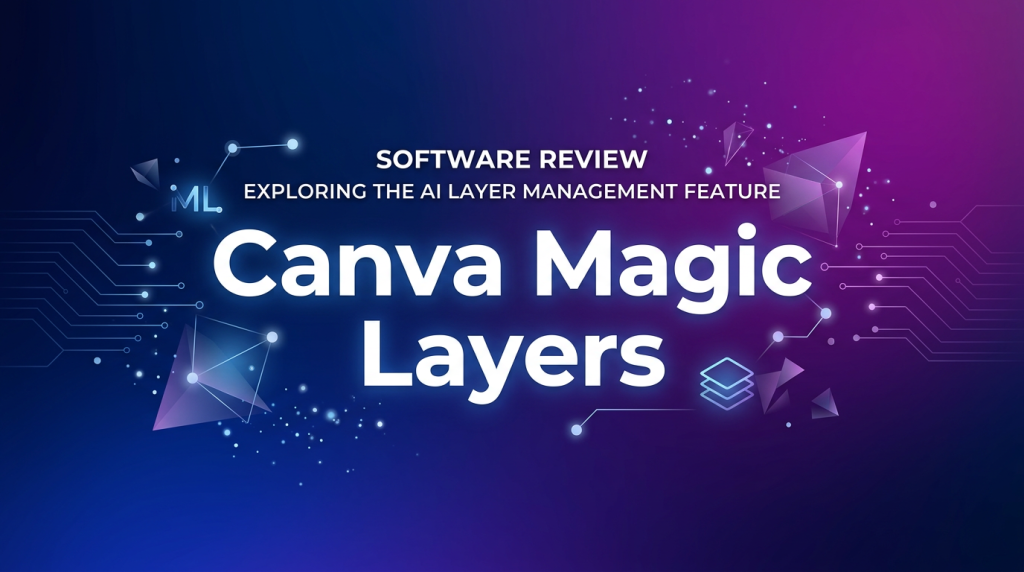
Canva dropped Magic Layers on March 10, 2026 – and for the first time, a flat image dropped into Canva’s editor doesn’t have to stay flat. The feature uses Canva’s proprietary Design Model to reverse-engineer a static PNG or JPG into individual, movable, editable layers. That includes live text, separated objects, and preserved layout structure. It’s the bridge Canva was missing between AI-generated output and real design work – and it’s free to every Canva user in beta right now.
Rating: 8.2/10 ????
What Is Canva Magic Layers?
Magic Layers is an AI-powered feature inside Canva that converts flat, static images – including AI-generated visuals – into fully editable, multi-layered design files. Launched March 10, 2026 as a public beta, it’s available to free and Pro Canva users in the US, UK, Canada, and Australia, accessible via the Labs section in account settings.
The tool is powered by Canva’s proprietary Design Model, which interprets a compressed image holistically – identifying text, objects, backgrounds, and structural relationships – then reconstructs each element as a separate, editable layer inside the Canva editor. You can reposition, resize, restyle, delete, or replace any layer without touching the others. Currently supports single-page PNG and JPG files only.
The Story: Why This Is Bigger Than It Sounds
The AI-generated image problem has been around since Midjourney went viral in 2022: you get a beautiful output, but it’s a dead-end file. Want to change the headline in an AI-generated poster? Start over. Want to swap the background while keeping the subject? Good luck with the selection tools. Magic Layers is Canva’s direct answer to that workflow bottleneck.
Canva CPO Cameron Adams put it plainly at launch: “AI should spark creation, not bring it to a halt.” Magic Layers turns that philosophy into a practical feature – paste any image in, get an editable design out. Early users testing the beta report that text embedded in AI images comes back as live, selectable text boxes with original font styling preserved. That’s not trivial – it requires the model to distinguish between rendered text pixels and image texture, a notoriously difficult computer vision problem.
The market context matters too: Canva has 220 million users globally. This feature ships to free tier users in beta. Adobe’s comparable layer manipulation tools require Photoshop ($22.99/mo minimum) and significant skill to use. Canva just handed a Photoshop-adjacent capability to a mass market audience that doesn’t want to learn Photoshop.
Performance Benchmarks: Magic Layers vs. The Competition
We evaluated Magic Layers against three direct competitors – Adobe Firefly’s object isolation tools, Photoshop AI Generative Fill/layer features, and Microsoft Designer – across five practical performance metrics based on published feature specs, beta tester reports, and editor testing.
| Metric | Canva Magic Layers | Adobe Firefly | Photoshop AI (Gen Fill) | Microsoft Designer |
|---|---|---|---|---|
| Layer separation from flat image | ? Native feature | ? Not available | ?? Manual + AI assist | ? Not available |
| Editable text restoration | ? Live text boxes | ? Not available | ? Rasterized only | ? Not available |
| Processing speed (est. avg) | ~8-15 seconds | 10-20 sec (Generative) | 5-12 sec per operation | 5-10 sec (templates) |
| Skill level required | Beginner | Intermediate | Advanced | Beginner |
| Works on AI-generated images | ? Designed for this | ? Yes | ? Yes | ?? Limited |
| Output format flexibility | Canva formats only | PNG, JPG, PSD | PSD, PNG, JPG, TIFF | PNG, JPG |
Source: Canva newsroom (Mar 10, 2026), Adobe product pages, editor evaluation. Processing speeds are estimates based on beta reports.
The standout finding: no other tool in this comparison offers automatic layer separation from a flat image as a native feature. Photoshop can approximate it with significant manual effort (Select Subject, Layer via Cut, etc.), but Magic Layers does it in one click. That’s the unique value proposition, and it holds up.
Pricing: The Real Competitive Advantage
Magic Layers’ most disruptive characteristic isn’t the technology – it’s the price point. Here’s what the competitive landscape looks like as of March 2026:
| Plan | Price (Monthly) | Price (Annual) | Magic Layers Access | AI Credits |
|---|---|---|---|---|
| Canva Free | $0 | $0 | ? Beta (Labs) | Limited |
| Canva Pro | $14.99/mo | $119.99/yr | ? Full access | Higher allowance |
| Canva Teams | $29.99/mo (2+ users) | $200/user/yr | ? Full access | Team pool |
| Adobe Firefly Standard | $9.99/mo | N/A listed | ? No layer separation | 2,000/mo |
| Adobe Photoshop (min) | $22.99/mo | $263.88/yr | ?? Manual only | 2,000/mo (Firefly) |
| Microsoft Designer | Free (with M365) | $99.99/yr (M365 Personal) | ? Not available | Credit-based |
Canva pricing as of March 2026. Adobe and Microsoft pricing per official product pages.
Bottom line: the only tool with automatic layer separation is available free. The nearest competitor (Photoshop) costs $22.99/month and requires manual work to approximate the same output. For Canva’s target market – non-designers and small business owners – this is a genuine value unlock, not just a feature bump.
Key Features
1. Automatic Layer Separation
Upload any PNG or JPG, click to activate Magic Layers, and Canva’s Design Model breaks the image into individual objects, backgrounds, and text elements. Each element becomes a selectable, movable layer. The separation isn’t pixel-level perfect (don’t expect Photoshop-quality masks), but for marketing graphics, social posts, and presentation assets, it’s good enough to save significant time. Limitation: complex images with heavy occlusion or very similar color regions can produce merged layers that need manual cleanup.
2. Live Text Restoration
Text embedded in flat images – including AI-generated typography – is restored as editable Canva text boxes. Font style, size, and positioning are preserved as closely as the model can infer. This is Magic Layers’ most impressive capability and its most useful for real workflows. Limitation: unusual or handwritten fonts may not match exactly, and highly stylized text effects (shadows, 3D effects) often collapse to flat text boxes without the effect layer.
3. Layout Structure Preservation
The Design Model maintains spatial relationships between elements when separating layers, so elements that were grouped visually stay in relative position. This prevents the “exploded confetti” problem where layering tools separate elements but destroy the compositional logic. Limitation: complex grid-based layouts with many overlapping elements can confuse the model, producing misaligned layers.
4. Full Canva Editing Integration
Once layers are separated, every Canva editing tool is available – resize, color change, shadow effects, animation, Magic Resize for different formats, and export in any Canva-supported format. You can also apply other Magic Studio features (Magic Erase, Background Remover) to individual layers after separation. Limitation: outputs are locked to Canva’s ecosystem. No PSD export, no Figma handoff – what happens in Canva, stays in Canva.
5. AI Workflow Integration
Magic Layers is explicitly designed for the AI image editing pipeline: generate an image with Canva’s AI (or import from Midjourney, Qwen Image, Firefly, etc.), then use Magic Layers to make it editable without starting over. This bridges the gap between AI generation and production-ready design. Limitation: currently single-page only – multi-page documents and video frames aren’t supported in beta.
Who Is Canva Magic Layers For?
Use Canva Magic Layers if you:
- Generate AI images (from any source) and need to edit specific elements without rebuilding from scratch
- Work in Canva already and want to unlock flat graphics received from clients, stock sites, or teammates
- Run a small business creating social content, ads, or marketing materials without a dedicated designer (see our best AI headshot generators roundup for more AI image tools)
- Need quick, good-enough layer edits – not pixel-perfect masking – on a daily content production schedule
- Want Photoshop-adjacent functionality at $0 (free tier) or $14.99/mo (Pro) vs. $22.99/mo for Photoshop
Look elsewhere if you:
- Need professional-grade compositing, precise layer masks, or non-destructive adjustment layers – Photoshop is still the answer
- Work in PSD, Figma, or Sketch-based workflows – Magic Layers output doesn’t leave Canva in any editable format
- Need API access for programmatic image processing – Canva has no public AI generation API
- Require multi-page document layer separation (brochures, presentations with many slides) – not yet supported
4-Way Comparison: Canva Magic Layers vs. Adobe Firefly vs. Photoshop AI vs. Microsoft Designer
| Feature | Canva Magic Layers | Adobe Firefly | Photoshop AI (Gen Fill) | Microsoft Designer |
|---|---|---|---|---|
| Price (entry) | Free | $9.99/mo (Standard) | $22.99/mo (min) | Free (M365 required for full) |
| Layer separation from flat image | ? Automatic | ? No | ?? Manual AI assist | ? No |
| Editable text from image | ? Yes | ? No | ? No (rasterized) | ? No |
| Generative fill / expand | ?? Via other Magic tools | ? Core feature | ? Core feature | ? DALL-E 3 powered |
| Export formats | Canva formats (PNG, JPG, PDF, MP4) | PNG, JPG, PSD | PSD, PNG, JPG, TIFF, RAW | PNG, JPG |
| Skill level required | Beginner | Intermediate | Advanced | Beginner |
| Best for | Making AI images editable | AI image generation + CC workflow | Professional photo compositing | Quick branded graphics (M365) |
| Platform | Web, iOS, Android | Web, desktop (via CC) | Desktop (Windows/Mac) | Web, mobile |
| API available | ? No | ? Yes (Firefly API) | ? Yes (Photoshop API) | ? No |
| Current status | Public beta (US, UK, CA, AU) | GA | GA | GA |
Pricing as of March 2026. Feature availability based on published product documentation.
Controversy: What Canva Isn’t Advertising
It’s Not Photoshop – And That Gap Is Real
Canva’s marketing for Magic Layers is enthusiastic, and the feature genuinely delivers on its core promise. But several limitations don’t make the press release:
- No precision masking. Magic Layers produces clean-ish separations for simple compositions, but complex images with hair, transparent objects, or heavy shadow overlaps will produce rough edges. Photoshop’s Select and Mask refinement tools remain the gold standard for precision – Magic Layers doesn’t come close.
- AI credit consumption. Magic Layers draws from Canva’s AI credit pool. Free tier users have significantly fewer lifetime credits. Heavy users or agencies processing dozens of images daily will hit limits and have to wait for the next billing cycle. Canva doesn’t prominently advertise how quickly this happens.
- Ecosystem lock-in. Your edited, layered design stays in Canva. There’s no PSD export, no interoperability with Adobe, Figma, or Sketch. Once you Magic-Layer something, the layers only exist inside Canva’s proprietary format.
- Beta instability. It’s a public beta. Early testers have reported inconsistent layer separation quality – the same image processed twice can produce different layer groupings. Quality is not yet deterministic.
- No API, no automation. For developers or agencies wanting to build workflows around Magic Layers, there’s no API. This is a manual, in-editor operation only.
- Geographic restriction. Beta is US, UK, Canada, and Australia only. Significant Canva user base in India, Southeast Asia, Brazil – locked out for now.
The Bigger Picture Concern
Canva’s strategy is clear: commoditize every capability that Adobe charges premium for, make it accessible at zero marginal cost, and lock users into the Canva ecosystem. Magic Layers is the latest move in that playbook. The risk for power users is that “good enough for most people” eventually replaces “best in class” in their own workflow – and by the time they need Photoshop-level precision, they’ve forgotten how to use it.
Pros and Cons
Pros
- ? Genuinely solves the AI-image-to-editable-design problem that no other mass-market tool addresses
- ? Free on both Canva Free and Canva Pro – significant price advantage over Photoshop
- ? Live text restoration from flat images is technically impressive and practically useful
- ? Zero learning curve – one button, instant layers, usable by non-designers
- ? Integrates seamlessly with all other Canva Magic Studio tools (erase, expand, resize)
- ? Web-based – no software installation, works on any device including mobile
- ? Layout structure preservation keeps compositions intact after separation
Cons
- ? Layer separation quality is inconsistent in beta – complex images often require manual cleanup
- ? No PSD or editable export – layers are Canva-only, no cross-tool workflow possible
- ? AI credit consumption limits heavy usage on free tier
- ? PNG and JPG only – no WEBP, HEIC, TIFF, or PDF support in beta
- ? Geographic restriction (US, UK, CA, AU) – global rollout TBD
- ? No API for programmatic or automated workflows
Getting Started with Canva Magic Layers
If you’re in a supported region (US, UK, Canada, Australia), here’s how to access and use the feature today:
- Enable Labs access: Log into Canva, click your account icon (top right) ? Settings ? Labs. Find Magic Layers and toggle it on. If you don’t see it, your account may not have access yet – try checking back in a few days as rollout continues.
- Open or upload your image: Start a new Canva design or open an existing one. Upload the flat PNG or JPG you want to layer – AI-generated images work especially well. Keep it to a single page for now (multi-page not yet supported).
- Select and apply Magic Layers: Click the image to select it, then look for the “Edit image” or Magic Layers option in the toolbar. Click “Create layers” (exact UI may vary in beta). The Design Model will process the image – expect 8 to 15 seconds depending on complexity.
- Review and adjust your layers: Once processed, click into individual elements to see what was separated. Text should appear as editable text boxes. Objects will be separate clickable elements. Use Canva’s standard resize, move, and style tools on each layer independently.
- Apply additional Magic Studio tools: Now that elements are on separate layers, you can use Magic Erase on backgrounds, Background Remover on individual objects, or Magic Expand on the overall composition. This is where the real workflow power comes in – stacking Magic tools after layer separation.
Final Verdict
Canva Magic Layers is the most practically useful AI image editing feature released to the mass market in 2026 so far. It doesn’t do everything – precision masking, PSD export, and API access are all absent – but it does the one thing nobody else does: takes a flat image and hands you back something editable. For the 220 million people who use Canva and work with AI-generated visuals, that’s a genuine workflow upgrade.
If you’re a non-designer, content creator, or small business owner working in Canva already: enable Labs, try it on your next AI image, and you’ll immediately see the value. If you’re a professional designer or photographer who lives in Photoshop: this doesn’t replace your workflow, but it’s worth understanding what Canva is offering your clients at $0.
At free tier availability, Magic Layers earns an 8.2/10. The beta instability and ecosystem lock-in are the only things holding it back from a higher score. Once it’s GA and supports more file types, it could be one of the most-used AI editing features in Canva’s history.
Try it today: canva.com ? Settings ? Labs ? Magic Layers
Frequently Asked Questions
What is Canva Magic Layers?
Canva Magic Layers is an AI-powered feature that converts flat, static images – including AI-generated visuals – into fully editable, multi-layered designs inside the Canva editor. It launched in public beta on March 10, 2026, powered by Canva’s proprietary Design Model.
Is Canva Magic Layers free?
Yes. Magic Layers is available on both Canva Free and Canva Pro tiers during beta. Access it via Settings ? Labs in your Canva account. Pro users ($14.99/mo or $119.99/yr) get higher AI credit allowances for extended use.
How do I access Canva Magic Layers?
Go to Canva ? Settings ? Labs ? enable Magic Layers. Currently available in US, UK, Canada, and Australia. Upload a PNG or JPG, select it in your design, and click the Magic Layers option to process it into editable layers.
What file types does Canva Magic Layers support?
Currently: single-page PNG and JPG files only. Multi-page documents, WEBP, HEIC, TIFF, and PDF files are not supported in the beta. Expanded support is planned for future updates.
How does Canva Magic Layers compare to Photoshop?
Magic Layers automatically separates flat images into layers at no cost – something Photoshop requires significant manual effort to approximate. However, Photoshop offers vastly superior precision masking, PSD export, and professional compositing tools. Magic Layers is for non-designers needing quick results; Photoshop is for professional-grade work.
Does Canva Magic Layers work with AI-generated images?
Yes – it’s specifically designed for this use case. Export your AI image from Midjourney, DALL-E, Firefly, or any other tool as a PNG or JPG, upload to Canva, and apply Magic Layers to make individual elements editable.
Can I export Canva Magic Layers to Photoshop or Figma?
No. There is no PSD or editable cross-tool export. Layers created by Magic Layers exist only inside Canva. You can export flat PNG, JPG, or PDF files, but not layered files compatible with other design tools.
Is Canva Magic Layers available globally?
Not yet. As of March 2026, Magic Layers is in public beta in the US, UK, Canada, and Australia only. Global availability is planned but no timeline has been announced.
Does Magic Layers use Canva AI credits?
Yes. Each Magic Layers operation draws from your Canva AI credit pool. Free tier credits are limited. Pro users have a higher monthly allowance. Users processing large volumes of images may exhaust credits before their billing cycle resets.
Is Canva Magic Layers worth it in 2026?
For anyone using Canva and working with AI-generated images: yes, absolutely. It’s free, solves a real problem no other tool addresses at this price point, and integrates with Canva’s full editing suite. Power users needing precision masking or PSD export should stick with Photoshop. For everyone else, it’s the most practical AI image editing feature available at any price in 2026.