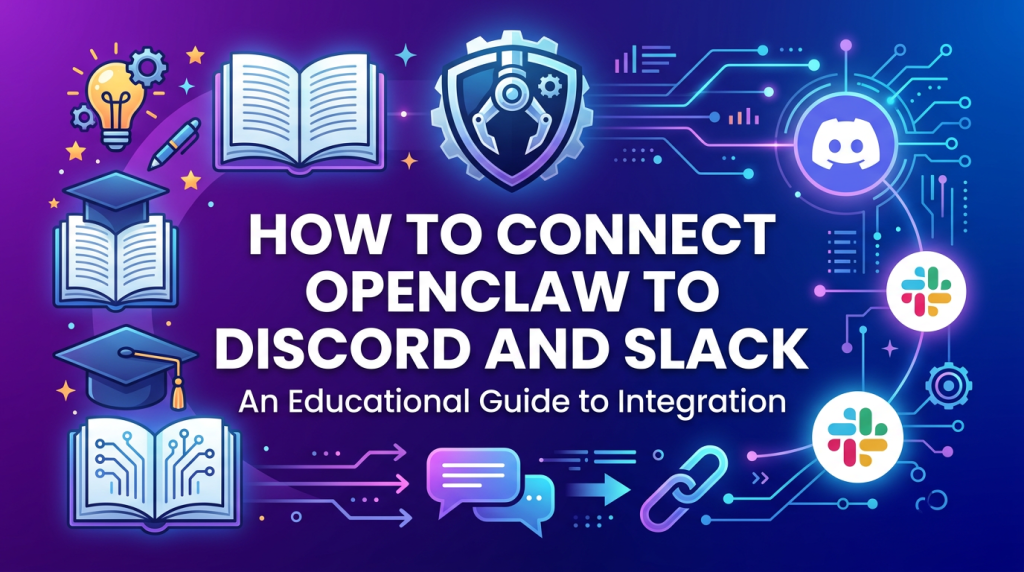
p>Our Telegram bot has been running for months. It handles morning briefings, monitors the site, drafts articles, fires off alerts when something breaks. It’s genuinely useful. So when we finally wired OpenClaw into Discord and Slack, the first thought was: why did we wait this long?
If you’re already using OpenClaw, connecting it to Discord or Slack is one of the highest-leverage moves you can make. Your AI assistant stops being something you have to open a terminal to talk to – it becomes a presence in the same channels where your actual work happens. Team members can query it. Workflows can trigger it. Alerts land where people already look.
This is the full setup walkthrough. Real commands, real config, real mistakes we made so you don’t have to.
Why Pipe Your AI Agent Into a Chat Platform
There’s an obvious answer and a non-obvious one.
The obvious answer: convenience. Asking your AI assistant a question in Discord is faster than switching to a terminal. Getting a site alert in Slack means it’s seen immediately instead of sitting in a log file nobody reads.
The non-obvious answer: persistence and team leverage. When OpenClaw responds in a Discord channel, that response is logged, searchable, visible to everyone with access. If you’re running a team, a publication, or even a solo operation with collaborators, a shared AI channel creates institutional memory. You stop re-asking the same questions. Decisions accumulate. The assistant gets more useful over time because the context lives where the work does.
It’s the difference between a private journal and a shared whiteboard. Both work. One scales.
Prerequisites: What You Need Before Starting
Before a single command runs, make sure you have:
- OpenClaw installed and running – If you haven’t done this yet, start with our Windows setup guide or the official OpenClaw documentation. The gateway needs to be active for channel integrations to work.
- A Discord server where you have admin rights – You need permission to create applications and bots. Personal servers are fine for testing.
- A Slack workspace where you can install apps – Workspace admin access, or permission from whoever runs yours.
- OpenClaw version 1.8+ – Run
openclaw --versionto check. Discord and Slack support was added in 1.6 but improved significantly in 1.8. - Node.js 20+ – Check with
node --version.
One thing nobody mentions in setup guides: have your OpenClaw agent configured and tested via another channel (Telegram works well) before adding Discord or Slack. Debugging an agent that’s broken and a channel integration that’s new simultaneously is a headache. Get the agent solid first.
Part 1: Connecting OpenClaw to Discord
Step 1: Create a Discord Application and Bot
Head to the Discord Developer Portal and click “New Application.” Give it a name – we used “OpenClaw” but anything works. This is the container that holds your bot.
Once created, go to the Bot section in the left sidebar. Click “Add Bot.” Discord will warn you this is irreversible – it is, but it’s also fine. You now have a bot user.
On the Bot page, you need three things:
- Copy the Bot Token – Click “Reset Token” to generate one. Copy it immediately and store it somewhere safe. You won’t see it again without resetting. This is the credential OpenClaw uses to act as your bot.
- Enable Message Content Intent – Scroll down to Privileged Gateway Intents. Enable “Message Content Intent.” Without this, the bot can’t read messages people send to it.
- Enable Server Members Intent – Also enable this if you want the bot to respond to @mentions from specific users.
Save changes. Don’t close this tab yet.
Step 2: Invite the Bot to Your Server
Go to the OAuth2 ? URL Generator section. Under Scopes, check bot and applications.commands. Under Bot Permissions, at minimum select:
- Read Messages/View Channels
- Send Messages
- Read Message History
- Use Slash Commands
For full functionality (file uploads, reactions), also add: Attach Files, Add Reactions, Embed Links.
Copy the generated URL, paste it in your browser, and authorize the bot to join your server. It’ll show up in the member list as offline – that’s expected until we configure OpenClaw.
Step 3: Get Your Channel ID
In Discord, go to User Settings ? Advanced ? Enable Developer Mode. Now right-click on any channel and select “Copy Channel ID.” Save this – you’ll need it in the config.
Step 4: Configure OpenClaw
Open your OpenClaw config. On Windows, this lives at %APPDATA%\openclaw\config.yaml (or wherever your gateway config points). Add the Discord channel configuration:
channels:
  discord:
    enabled: true
    token: "YOUR_BOT_TOKEN_HERE"
    defaultChannel: "YOUR_CHANNEL_ID_HERE"
    prefix: "!"
    mentionResponse: true
    allowedRoles: []
    threadSupport: true
A few notes on these settings:
prefix– The character that triggers the bot in channels. With!set, typing!ask what's my site status?fires the agent. Set to empty string if you want it to respond to all messages in a channel (useful for dedicated bot channels, chaotic for general channels).mentionResponse: true– Bot responds when @mentioned, regardless of prefix. Highly recommended.allowedRoles– Empty array means anyone in the server can use it. Add role IDs to restrict access.threadSupport: true– Responses get their own thread instead of cluttering the channel. We keep this on.
Restart the OpenClaw gateway:
openclaw gateway restartWithin 30 seconds, the bot should show as online in Discord. Send it a test message using your prefix or an @mention. If it responds, you’re done with the basic setup.
Step 5: Create a Dedicated Bot Channel (Recommended)
We created a #ai-assistant channel in our server. This is where most interaction happens. We also created an #ai-alerts channel for automated notifications – site downtime, new content published, cron job completions. Keep conversations and automated noise in separate channels or things get messy fast.
To set up alert routing, configure your cron jobs and monitoring tasks in OpenClaw to post to the alerts channel ID instead of the default:
crons:
  - name: site-health-check
    schedule: "*/15 * * * *"
    task: "Check if computertech.co returns HTTP 200. If not, alert immediately."
    channel: discord
    channelId: "YOUR_ALERTS_CHANNEL_ID"
This is where it starts to feel different from just having a terminal. A site goes down at 2am, Discord pings you on your phone. The fix is in your pocket before you’ve poured coffee.
Part 2: Connecting OpenClaw to Slack
Step 1: Create a Slack App
Go to api.slack.com/apps and click “Create New App.” Choose “From scratch.” Name it and select your workspace.
You’ll land on the app’s basic information page. This is the command center for your integration.
Step 2: Configure Bot Permissions
Go to OAuth & Permissions in the sidebar. Under Bot Token Scopes, add:
app_mentions:read– Read messages that @mention the botchannels:history– Read messages in public channelschannels:read– View channel infochat:write– Post messagesfiles:write– Upload files (useful for reports)im:history– Read DMs to the botim:read– Access DM infoim:write– Send DMs
Scroll up and click “Install to Workspace.” Authorize it. You’ll get a Bot User OAuth Token – it starts with xoxb-. Copy it. This is your Slack equivalent of the Discord bot token.
Step 3: Enable Event Subscriptions
Go to Event Subscriptions and toggle it on. Slack needs a URL to send events to – this is your OpenClaw gateway’s public endpoint.
If your OpenClaw runs locally, you need a tunnel. We use ngrok for testing:
ngrok http 3000For production (server-based setups like a DigitalOcean droplet), use your server’s public IP and port. The OpenClaw Slack listener runs on port 3000 by default – confirm this in your config.
Your Request URL should look like: https://your-domain-or-ngrok-url/openclaw/slack/events
After Slack verifies the URL, subscribe to these bot events:
app_mention– Triggers when someone @mentions your botmessage.im– Triggers on DMs to the bot
Save changes.
Step 4: Configure OpenClaw for Slack
Back in your OpenClaw config:
channels:
  slack:
    enabled: true
    botToken: "xoxb-YOUR-TOKEN-HERE"
    signingSecret: "YOUR_SIGNING_SECRET"
    defaultChannel: "YOUR_CHANNEL_ID"
    mentionResponse: true
    dmResponse: true
The signingSecret lives under your Slack app’s Basic Information page – it’s used to verify that events actually come from Slack. Don’t skip this.
Get your channel ID in Slack by right-clicking a channel ? View channel details ? copy the ID at the bottom (it starts with C).
Restart the gateway. Your bot should appear online in Slack. @mention it to test.
Slack vs Discord: Honest Take
We run both. Slack is better for professional/team workflows – the threading model is cleaner, Slack Connect means you can share the bot with clients, and the notification controls are more granular. Discord is better for community-style setups and personal use – it’s faster to set up, the bot feels more natural, and frankly, most people are already in Discord.
If you’re running a solo operation, pick whichever you actually use. Don’t add a channel just because this article told you to – an unused integration is just noise in your config.
Real Workflows We Use Every Day
Setup is the boring part. Here’s the actual useful stuff.
Morning Briefing in Discord
Every morning at 7:00 AM MST, OpenClaw posts to our #ai-alerts channel:
- Current Bitcoin price and 24h change
- Any new AI tool launches from the previous 24 hours (fed by our news detection scripts)
- Site health status across our main URLs
- Top 3 ranking movements from Search Console
We covered the cron setup mechanics in detail in our OpenClaw Cron Jobs guide. The new piece is simply pointing the output to Discord instead of (or in addition to) Telegram:
crons:
  - name: morning-briefing
    schedule: "0 7 * * *"
    task: "Generate morning briefing: BTC price from CoinGecko API, check computertech.co HTTP status, pull top 5 GSC query movers from yesterday."
    channel: discord
    channelId: "ALERTS_CHANNEL_ID"
On-Demand Research in #ai-assistant
The most-used workflow: drop a research question in the Discord channel during a work session. Instead of switching context to open a terminal or browser, just type:
!ask What are the main differences between OpenAI Responses API and the standard Chat Completions API?Response lands in a thread. Clean, searchable, doesn’t interrupt anyone else. We’ve found ourselves building up a genuine knowledge base this way – months of questions and answers, all searchable in Discord’s search.
Site Monitoring Alerts
As covered in our website monitoring deep-dive, we run six automated checks every 15 minutes. The Discord integration means downtime alerts route directly to a pinned channel instead of requiring us to actively check a dashboard. No dashboard to forget to check.
Content Pipeline Notifications
Our content pipeline (documented in the content pipeline guide) now posts a Discord notification every time an article gets published. It includes the post title, URL, word count, and focus keyword. Trivial feature, but it gives the whole operation a sense of momentum – you see output accumulating in real time.
Slack for Luxora Clean (Client Use Case)
We set up a parallel OpenClaw instance for a cleaning business – separate workspace, configured with business-specific context (service areas, pricing, FAQ). Their Slack workspace now has a bot that can answer common customer questions routed through staff, draft response templates, and remind the team about upcoming jobs. Cost to run: under $40/month in API calls and hosting. Time saved: hours per week.
This is the model for anyone thinking about deploying OpenClaw as a managed service. The Discord/Slack integrations are what make it feel like a real employee rather than a command-line tool. If you’re evaluating whether OpenClaw is the right platform for this kind of setup, our OpenClaw vs Auto-GPT vs AgentGPT comparison breaks down why OpenClaw’s channel integrations put it ahead for real-world use.
Troubleshooting: What Goes Wrong and Why
Here’s what actually broke during our setup, in case you hit the same walls.
Bot is Online But Not Responding
Most common cause: Message Content Intent is disabled on the Discord Developer Portal. Go back to your bot settings and make sure it’s enabled. The bot can be “online” without having permission to read what people type at it.
Second most common: the prefix or mention setting doesn’t match how you’re triggering it. If you set a prefix of ! but are typing /ask, nothing will fire.
Slack Events Not Reaching OpenClaw
Verify the endpoint URL is correct and publicly accessible. If you’re behind a firewall or on a local network, Slack can’t reach you. Check the Event Subscriptions page – Slack shows delivery errors there.
Also verify the signing secret is correct. A mismatch causes OpenClaw to silently reject events (security feature, annoying during debugging).
Gateway Crashes After Adding Channel Config
Usually a YAML formatting issue – OpenClaw’s config is sensitive to indentation. Each nested level needs 2 spaces, not tabs. Run openclaw gateway status to see the error log. Nine times out of ten it’ll tell you the exact line number.
Bot Responds to Everything (Not Just Prefixed Messages)
You probably left prefix as an empty string in the config. Add a prefix character or restrict the bot to a dedicated channel via Discord’s channel permissions – only give it Read/Send access in the channels where you want it active.
Rate Limiting
If you’re running heavy cron jobs that post frequently to Discord, you’ll hit rate limits. Discord allows 5 messages per 5 seconds per channel. Space out your cron jobs or batch outputs into single messages. The openclaw.ai docs have a section on rate limit handling – worth reading before you set up anything that posts frequently.
Discord vs Slack vs Telegram: Which Should You Use?
We get asked this a lot. Quick framework:
| Platform | Best For | Setup Complexity | Team Features |
|---|---|---|---|
| Telegram | Personal use, mobile-first | Lowest | Limited |
| Discord | Community, hobbyist, personal teams | Medium | Good (roles, channels) |
| Slack | Professional teams, client work | Highest | Best (threads, Slack Connect) |
You don’t have to pick one. OpenClaw supports all three simultaneously. Our current config has Telegram for personal alerts (it’s on my phone, instant), Discord for the content operation, and Slack for client-facing work. Each channel gets routed the appropriate content type.
Here’s what other OpenClaw setup guides don’t tell you: the channel you use doesn’t change what OpenClaw can do – it changes your relationship with the output. Telegram notifications I see and dismiss in 10 seconds. Discord discussions I actually read and sometimes build on. Slack messages I treat as work items. Match the platform to how you want to interact with the information, not just where it’s easiest to set up.
Advanced: Multi-Server and Multi-Workspace Setups
Once you’re comfortable with the basics, you can push further.
Multiple Discord Servers
OpenClaw supports multiple bot configurations. If you need the same agent in two different Discord servers – say, a personal server and a team server – create two Discord applications and configure both in OpenClaw:
channels:
  discord_personal:
    type: discord
    enabled: true
    token: "PERSONAL_BOT_TOKEN"
    defaultChannel: "PERSONAL_CHANNEL_ID"
  discord_team:
    type: discord
    enabled: true
    token: "TEAM_BOT_TOKEN"
    defaultChannel: "TEAM_CHANNEL_ID"
Each configuration is independent – different tokens, different channels, different permissions. The agent underneath them can be the same or different depending on your setup.
Routing by Content Type
Our most useful advanced config: cron jobs and automated tasks route to different channels based on urgency and type. Site downtime ? Discord alerts channel (pings enabled). Daily briefings ? Discord alerts channel (no ping). Research responses ? reply in-thread where asked. Content pipeline notifications ? Discord activity feed channel.
This is just thoughtful cron configuration – nothing magic – but it means the right people see the right things without Discord becoming unreadable noise.
Skills That Work Well in Discord/Slack Context
If you’ve installed additional OpenClaw skills (the plugin ecosystem – see the OpenClaw GitHub for the full list), most work seamlessly through Discord and Slack. A few that shine in a chat context:
- Tavily search skill – Ask research questions in Discord, get web-search-backed answers instead of just model knowledge
- GSC skill – Query Search Console data directly from Slack for quick ranking checks
- Morning routine skill – Daily briefings with custom format, routed to your preferred channel
The pattern is consistent: any skill that produces output benefits from being piped to wherever you actually pay attention. Skills are covered in depth in the OpenClaw documentation.
Who Is This For?
This guide is built for a specific type of user – someone who already has OpenClaw running (or is close to it) and wants to get more out of it than a terminal workflow. If any of these describe you, this setup is worth the hour it takes:
- Solo operators and content creators – You want alerts, briefings, and research responses hitting you in Discord or Slack where you already spend time, not buried in a terminal you have to actively open.
- Small teams – Your collaborators aren’t going to install OpenClaw locally. But they’re already in Slack. A shared bot channel means everyone benefits without everyone needing a setup.
- Freelancers and consultants – The Slack use case is strong here. Configure a separate OpenClaw instance per client, deploy it in their workspace, charge for the automation layer. Recurring revenue, minimal overhead.
- Anyone running crons or monitoring – If you’re running automated checks (site health, competitor monitoring, daily briefings), you want those results somewhere you’ll actually see them. Discord and Slack beat log files every time.
If you’re brand new to OpenClaw and haven’t set up your first agent yet, start with the Windows installation guide first. Come back here once the gateway is running.
Alternatives to Consider
OpenClaw isn’t the only way to wire an AI agent into Discord or Slack. Here’s how the main options compare – and why we landed where we did.
- Zapier + ChatGPT Actions – Works, but you’re paying per-zap and losing the persistent agent context. Every message is a stateless call. Fine for simple automations, limiting for anything that needs memory or multi-step reasoning.
- Auto-GPT / AgentGPT – Both have Discord integrations, but they’re primarily loop-based task runners rather than persistent conversational agents. We covered this in depth in our OpenClaw vs Auto-GPT comparison – the short version is that OpenClaw wins on channel flexibility and day-to-day usability.
- Custom Discord bot (discord.js / discord.py) – Maximum control, but you’re writing and maintaining the bot yourself. Worth it if you have specific requirements OpenClaw doesn’t cover. Not worth it for 90% of use cases.
- n8n self-hosted – Good if you’re already deep in the n8n ecosystem. Workflow-based rather than agent-based, so you’re designing flows rather than prompting an assistant. Different mental model, similar outcomes for simple automations.
- Lindy AI – Has native Slack integration and is genuinely good. More expensive than running OpenClaw yourself, but easier to get started with if you don’t want to manage a gateway. Our affiliate automation writeup covers where self-hosted solutions like OpenClaw outperform managed alternatives at scale.
The honest take: if you’re comfortable with a YAML config file and a terminal, OpenClaw gives you more control and lower ongoing cost than any managed alternative. If that sounds like too much work, Lindy or Zapier are reasonable starting points.
Security Considerations
Connecting an AI agent to a chat platform expands the attack surface. A few non-negotiable practices:
- Never put tokens directly in config files that get committed to version control. Use environment variables. OpenClaw supports
${ENV_VAR}syntax in config files. - Use
allowedRolesin Discord config to restrict who can trigger the bot. An open bot in a shared server can be abused or at minimum drain your API budget. - Rotate tokens periodically. Discord and Slack both make this easy – reset the token, update your config, restart the gateway. Takes 2 minutes.
- Audit your cron jobs. Automated tasks that post to public channels should be reviewed – especially anything that includes site metrics or internal data you don’t want visible.
- Keep the gateway off public internet if possible. Telegram works with webhooks or polling; Discord and Slack work via either. If you can use polling/websocket connections instead of exposing a port, do it.
Frequently Asked Questions
Does OpenClaw Discord integration work on mobile?
Yes. Once configured, the Discord bot responds to messages from any client – desktop, mobile, or browser. The integration is server-side; your device just sends and receives Discord messages normally. OpenClaw handles the AI processing on your server or computer.
Can multiple people use the Discord bot simultaneously?
Yes. Multiple users can send messages to the bot at the same time. OpenClaw queues requests and handles them in order. Response times scale with your API provider’s throughput – with a typical Anthropic API key, concurrent requests work fine for small teams.
Does this cost extra beyond my OpenClaw setup?
No additional cost from OpenClaw itself – Discord and Slack app registrations are free. Your only costs are the API calls your agent makes in response to messages. More channel activity means more API usage, so keep that in mind if you enable a bot in a high-traffic channel.
Can I use OpenClaw’s Discord integration for a customer-facing support bot?
Technically yes, but read the Discord ToS carefully first. Bots that handle customer data need proper disclosure. More practically: configure a separate OpenClaw agent instance with restricted context so it can’t access your personal data or credentials.
What happens if my computer running OpenClaw goes to sleep?
The bot goes offline when the gateway stops. For 24/7 availability, you need a server or VPS running OpenClaw continuously. We run ours on a DigitalOcean droplet – around $6/month. That’s covered in the full setup guide.
Can I connect OpenClaw to both Discord and Slack at the same time?
Yes. Both channels can be active simultaneously. The same agent processes requests from all configured channels. You can route different cron outputs to different platforms as needed.
How do I update OpenClaw after setting up Discord integration?
Run npm update -g openclaw to update. Your config files persist through updates. After updating, restart the gateway with openclaw gateway restart and verify the bot is still online in Discord. New versions occasionally change config syntax – check the changelog before major version jumps.