Your AI assistant is only useful when it’s actually running. And most people — even after setting up OpenClaw — leave it in reactive mode. It waits for you to say something. You ask, it answers. You walk away, it does nothing.
That’s not an AI employee. That’s a faster Google search.
The thing that changes everything is OpenClaw’s cron job system. Once you understand it, you stop thinking of OpenClaw as a chatbot and start treating it like infrastructure — a process that runs whether you’re awake, at work, or off the grid. We’ve had crons running on our setup for months now, and the best way to describe it: it’s like hiring someone who never needs a day off, never forgets a task, and never asks “what should I do today?”
This guide covers everything. How OpenClaw cron jobs work, the different job types, real configuration examples, the scheduling syntax, and the specific setups we’ve built and run on our own stack. By the end, you’ll have at least three crons running that make you wonder how you operated without them.
What Are OpenClaw Cron Jobs?
Cron jobs in OpenClaw are scheduled tasks that run your AI agent automatically — no input required from you. They’re built on the same scheduling concept as Unix cron, but instead of running shell scripts, they run AI agent turns with full access to all your configured tools.
Think of a traditional cron job as a timer that fires a script. OpenClaw’s version is that same timer, but instead of a script, it fires a fully capable AI agent that can browse the web, write files, call APIs, send you messages, manage your WordPress site, execute code, and make decisions based on context.
The practical difference is enormous. A shell cron can ping a server and email you “status: up.” An OpenClaw cron can check your server, analyze the response times, compare them to yesterday’s baseline, write a summary, post it to Telegram, and flag anything that looks off — all without a single line of custom code.
We use OpenClaw’s cron system for everything from morning briefings to automated content drafting to price monitoring. It’s the backbone of what we described in How I Built an AI Employee That Works 24/7 With OpenClaw. But the cron system deserves its own deep-dive because most tutorials treat it like an afterthought.
How OpenClaw Cron Jobs Work Under the Hood
OpenClaw’s cron system is managed through the Gateway — the central process that handles scheduling, session management, and tool routing. When you create a cron job, you’re telling the Gateway: “At this time, start a session with this prompt.” The Gateway tracks all scheduled jobs, fires them when due, and handles the result delivery.
Every cron job has three core components:
- Schedule — When to run: one-shot (at a specific time), recurring interval (every X milliseconds), or cron expression (specific days/times)
- Payload — What to run: either a system event injected into a session, or an agent turn with a full prompt
- Delivery — Where to send the result: your Telegram channel, a Discord server, a webhook endpoint, or none if you just want it to run silently
The jobs run in isolated sessions by default — clean context, no bleed from other conversations. This matters because you don’t want your morning briefing cron inheriting context from a two-hour debugging session you had the night before. Fresh session, clean prompt, predictable behavior.
Three Cron Job Types Explained
1. One-Shot Jobs (kind: “at”)
These fire once at a specific time and then expire. They’re perfect for reminders, scheduled reports, or time-sensitive tasks you want handled automatically.
{
  "schedule": { "kind": "at", "at": "2026-03-29T09:00:00Z" },
  "payload": { "kind": "agentTurn", "message": "Check the ComputerTech site for broken links and report findings." },
  "delivery": { "mode": "announce" }
}
We use these constantly when we’re doing fly-in/fly-out work and know we’ll be off the grid. Set a job to fire at 6 AM on the day you land back home — your morning briefing is waiting in Telegram before you’ve had coffee.
2. Interval Jobs (kind: “every”)
These fire on a recurring interval, measured in milliseconds. You can also set an anchor time — the exact moment the clock starts — to control when the first firing happens relative to when you created the job.
{
  "schedule": { "kind": "every", "everyMs": 3600000 },
  "payload": { "kind": "agentTurn", "message": "Check BTC price and alert if 24h movement exceeds 5% in either direction." },
  "delivery": { "mode": "announce" }
}
That runs every hour. Common intervals:
900000= 15 minutes1800000= 30 minutes3600000= 1 hour86400000= 24 hours604800000= 7 days
3. Cron Expression Jobs (kind: “cron”)
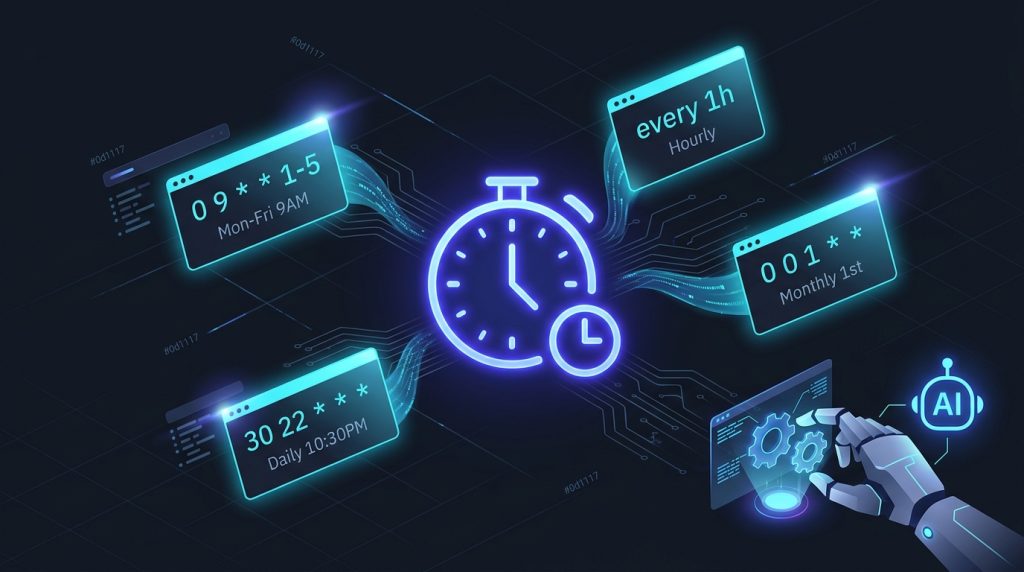
These use standard cron syntax to target specific days, times, and patterns. Most people are already familiar with this from Unix cron. OpenClaw supports the full 5-field cron expression format plus timezone specification.
{
  "schedule": { "kind": "cron", "expr": "0 9 * * 1-5", "tz": "America/Edmonton" },
  "payload": { "kind": "agentTurn", "message": "Run the weekday morning briefing: BTC price, top AI news, any urgent site issues." },
  "delivery": { "mode": "announce" }
}
That fires at 9 AM Monday through Friday, Mountain Time. The tz field is important — without it, everything defaults to UTC, and your “morning briefing” fires at 2 AM local.
Cron expression cheatsheet:
| Field | Range | Examples |
|---|---|---|
| Minute | 0-59 | 0 = top of hour, 30 = half past |
| Hour | 0-23 | 9 = 9 AM, 17 = 5 PM |
| Day of Month | 1-31 | 1 = first of month, * = every day |
| Month | 1-12 | * = every month, 1,7 = Jan and July |
| Day of Week | 0-7 (0 and 7 = Sunday) | 1-5 = weekdays, 6 = Saturday |
Payload Types: System Events vs Agent Turns
This is where people get tripped up, so let’s be direct about it.
System Events (payload.kind: “systemEvent”)
A system event injects text directly into the main active session. It’s not a separate AI run — it fires into whatever session is currently running, like a push notification that appears in your conversation. Use these for simple alerts, reminders, or triggering behavior in a persistent session.
{
  "payload": { "kind": "systemEvent", "text": "Reminder: Review yesterday's ad spend and adjust bids." },
  "sessionTarget": "main"
}
System events must target the main session. They’re fast, lightweight, and don’t consume agent tokens — they just surface text in your conversation.
Agent Turns (payload.kind: “agentTurn”)
This is the powerful one. An agent turn spins up a full AI session with your configured model, runs your prompt with all tools available, and delivers the result to wherever you specified. This is what makes crons feel like actual AI automation versus a calendar reminder.
{
  "payload": {
    "kind": "agentTurn",
    "message": "Check computertech.co for any 404 errors or broken images. Fix what you can directly. Report anything that needs manual review.",
    "model": "anthropic/claude-sonnet-4-6",
    "timeoutSeconds": 300
  },
  "delivery": { "mode": "announce" }
}
Key options for agent turns:
model— Override the default model for this specific job. Use cheaper/faster models for routine tasks, reserve Opus for complex analysis.timeoutSeconds— Cap how long the agent can run. Set0for no timeout. Most tasks should have a reasonable cap.thinking— Enable extended thinking for complex reasoning tasks.
Agent turns default to isolated sessions but can also target named persistent sessions (session:my-session-name) or the current session. For crons, isolated is almost always correct — you want clean, predictable execution.
Session Targets: Where Does the Job Run?
The sessionTarget field controls which session context the job executes in:
isolated(default for agentTurn) — Fresh, ephemeral session. No inherited context. Best for scheduled tasks.main(required for systemEvent) — Fires into your primary active session.current— Binds to the session that was active when the cron was created. Useful if you want a scheduled follow-up in the same conversation thread.session:custom-id— Runs in a named persistent session. Use when jobs need to share state or build on each other over time.
The persistent named session option is underused and genuinely powerful. We have a session called session:content-pipeline that multiple crons write into — a drafting cron runs at 4 AM, a review cron runs at 7 AM, and the session retains context between them. It’s like having two shifts of workers handing off to each other.
Managing Cron Jobs: The Practical Commands
OpenClaw manages crons through the built-in cron tool. Here’s the full operational workflow:
Creating a Job
cron action=add job={
  "name": "Daily BTC Alert",
  "schedule": { "kind": "every", "everyMs": 3600000 },
  "payload": {
    "kind": "agentTurn",
    "message": "Check current BTC price and 24h change. Alert if move exceeds 3%.",
    "model": "anthropic/claude-sonnet-4-6",
    "timeoutSeconds": 60
  },
  "delivery": { "mode": "announce" },
  "enabled": true
}
Listing All Jobs
cron action=listThis returns all scheduled jobs with their IDs, schedules, last run time, and enabled status. The job ID is what you need for all subsequent operations.
Updating a Job
cron action=update jobId="abc123" patch={ "enabled": false }Patch operations are partial — only the fields you specify get updated. You can disable a job without touching its schedule, or change the message without modifying the timing.
Running a Job Immediately
cron action=run jobId="abc123"This fires the job right now, regardless of schedule. Indispensable for testing. Build a cron, run it immediately, check the result, iterate. Don’t wait for the actual schedule to fire — you’ll be there all day.
Checking Run History
cron action=runs jobId="abc123"Returns the history of past runs — timestamps, success/failure status, and output. When a cron fires at 3 AM and you want to see what happened, this is your audit trail.
Deleting a Job
cron action=remove jobId="abc123"The Five Cron Setups We Actually Run
Theory is one thing. Here’s what we’ve actually built and run on our setup — the real configurations that have been running for months.
1. Morning Briefing (Weekdays, 9 AM)
The one that started everything. Fires at 9 AM Monday through Friday, delivers a Telegram message with BTC price and 24h change, any AI tool launches from the past 24 hours, and a quick flag if the ComputerTech site has any issues. Took about 20 minutes to build. Has saved hours of manually checking the same things every morning.
We covered this in detail in the OpenClaw Morning Briefing guide — if you want to build exactly this setup with the full prompt, that’s the resource.
2. Content Draft Pipeline (4 AM Daily)
Fires at 4 AM into a named persistent session. The prompt: check for newly announced AI tools in the past 24 hours, pick the most significant one, and write a full draft article in WordPress as a draft post. We wake up to a draft waiting for review — sometimes it needs work, sometimes it’s nearly ready to publish. The agent has access to the WordPress tool, so it actually creates the post, not just dumps text in a file.
This is the automated end of the pipeline we described in the AI employee article.
3. Weekly Performance Summary (Sunday, 6 PM)
One job, once a week. Pulls Google Search Console data, checks which articles got the most impressions and clicks, compares to the previous week, and reports what’s trending up or down. Thirty seconds of reading versus an hour of manual GSC navigation.
4. BTC Price Alert (Every 4 Hours)
Lightweight interval job. Runs every four hours, checks the current BTC price, and only sends a Telegram message if the 24h change exceeds 5% in either direction. Most of the time it fires and says nothing. When it does message, it’s actually worth reading.
The lesson here: not every cron needs to report every time it runs. Building in conditional delivery (“only alert if X”) keeps your notification channel useful instead of overwhelming.
5. Site Health Check (Every 6 Hours)
Checks that the ComputerTech site returns HTTP 200, loads in under 3 seconds, and has no obvious broken elements. If anything is off, it messages immediately. If everything’s fine, it logs silently. We haven’t had a site outage go undetected since we built this.
For the full monitoring setup, see our guide on OpenClaw Advanced Configuration.
Delivery Options: Where Results Go
A cron job that runs silently and logs to nowhere is like a tree falling in an empty forest. You need to decide where results land.
Announce Mode
The default for most agent turns. Results are delivered to your configured channel — Telegram, Discord, wherever you’ve set up OpenClaw’s messaging integration. This is what you want for briefings, alerts, and anything you need to read.
"delivery": { "mode": "announce" }You can also target a specific channel or user:
"delivery": { "mode": "announce", "channel": "telegram", "to": "@your_channel" }Webhook Mode
Sends the completed run as an HTTP POST to a URL. Use this when you want to pipe results into another system — a Notion database, a Slack webhook, a custom logging endpoint, whatever you’ve built.
"delivery": { "mode": "webhook", "to": "https://your-endpoint.com/openclaw-results" }We use this for the content pipeline — finished draft data gets posted to a simple webhook that updates a Notion page we use to track article status.
None / Silent
The job runs, does its thing, and reports nowhere. Useful for maintenance jobs where the work is the output — cleaning up temp files, updating internal memory files, rotating logs. You can still check run history if you need to audit what happened.
"delivery": { "mode": "none" }Common Mistakes and How to Avoid Them
We’ve made most of these. Learn from it.
Forgetting the Timezone
The most common. Everything in OpenClaw defaults to UTC. If you set a 9 AM cron without a timezone and you’re in Mountain Time, it fires at 3 AM local. Set "tz": "America/Edmonton" (or your actual timezone) on every time-sensitive cron expression.
Writing Prompts That Are Too Vague
An agent turn that says “check the site and report anything interesting” will produce inconsistent results. The more specific your prompt, the more reliable and useful the output. Include what to check, what threshold triggers an alert, what format to report in, and what to do if something needs action.
Bad: “Check BTC and let me know.”
Good: “Fetch current BTC/USD price and 24h percentage change. If the 24h change exceeds 5% in either direction, send a Telegram alert with the current price, the change percentage, and the direction. If the change is within normal range, do not send a message.”
Using Opus for Everything
Claude Opus is powerful but slow and expensive. Most cron jobs don’t need Opus-level reasoning — they need reliable execution of a clear task. Sonnet handles 90% of scheduled tasks perfectly. Save Opus for complex analysis jobs where the reasoning depth actually matters.
This is covered in more detail in our Advanced Configuration Guide, where we go into multi-model routing strategies.
No Timeout Set
Without a timeout, an agent turn can run indefinitely if it gets stuck or encounters an unexpected situation. Set reasonable timeouts. For a price check: 60 seconds. For a content draft: 600 seconds. For a full site audit: 300 seconds. If a job consistently runs close to its timeout, investigate why before just raising the cap.
Overlapping Crons Without Context Isolation
If you’re running crons that write to shared files or shared sessions, think through what happens when two run simultaneously. Interval jobs can overlap if the previous run takes longer than the interval. Use named sessions carefully, and consider using isolated sessions (the default) for most jobs to avoid state collisions.
Advanced Patterns: Chaining and Conditional Logic
Once you’re comfortable with basic crons, there are more sophisticated patterns worth knowing about.
Pipeline Chaining with Named Sessions
Set up two crons that target the same named session, with the second firing some time after the first. The first job does research or data gathering. The second job, running in the same session with the same context, acts on that research. This is how we chain our content draft pipeline — first cron gathers topic ideas and outlines, second cron writes from those outlines.
// Job 1 - 4 AM: Research
{
  "schedule": { "kind": "cron", "expr": "0 4 * * *", "tz": "America/Edmonton" },
  "payload": { "kind": "agentTurn", "message": "Research the top 3 AI tool launches from the last 24 hours. For each, gather: tool name, category, key features, pricing, and potential article angle. Save your research notes to memory/cron-research.md." },
  "sessionTarget": "session:content-pipeline"
}

// Job 2 - 5 AM: Draft from Research
{
  "schedule": { "kind": "cron", "expr": "0 5 * * *", "tz": "America/Edmonton" },
  "payload": { "kind": "agentTurn", "message": "Read memory/cron-research.md. Pick the best article candidate from the research. Write a full 2000+ word HTML article about it and save as a WordPress draft post. Use the established article format." },
  "sessionTarget": "session:content-pipeline"
}
Conditional Alerting
Build conditional logic directly into the agent prompt. This is more reliable than trying to add conditionals at the cron configuration level, and it lets the AI exercise judgment about what’s actually worth your attention.
The pattern: “Do X. If result meets condition Y, send alert Z. Otherwise, log silently.” This keeps your notification channel signal-heavy instead of turning into a firehose of routine updates you stop reading.
Self-Healing Jobs
This is where it gets interesting. A cron can be instructed to fix problems it discovers, not just report them. Our site health cron doesn’t just alert when it finds broken links — it attempts to fix them, update the post, and then report what it changed. The agent has WordPress tools, file system access, and internet access. Let it use them.
This connects to the broader skills and sub-agents framework — a cron can spawn sub-agents to handle subtasks in parallel, then aggregate results before delivering a summary.
Integrating Crons with OpenClaw Skills
Cron jobs become dramatically more powerful when combined with OpenClaw’s skill system. A cron can explicitly invoke a skill by referencing its capabilities in the prompt, and the agent will automatically load and follow the skill’s instructions.
For example, our morning briefing cron instructs the agent to “run the morning routine skill” — the agent loads the skill file, follows its structured protocol, and delivers a consistent, formatted report every time. Without that skill reference, the output varies. With it, you get the same structure every morning, making it easier to scan quickly.
For a full breakdown of how skills work, see our complete guide to OpenClaw Skills and Sub-Agents.
What to Build First: The Recommended Starting Stack
If you’re starting from zero, here’s the order we’d do it in:
- Morning briefing cron — One cron, fires daily at your wake-up time, delivers a summary to Telegram. This alone justifies the whole setup and gives you a live example to learn from.
- Price/metric alert — One interval job monitoring something you actually care about. BTC price, server response time, whatever’s relevant to your work.
- Weekly summary — One Sunday cron that looks back at the week across whatever metrics matter to you. This is the “zoom out” job that keeps you strategic instead of reactive.
- Background research job — Once you’re comfortable with the above, add a job that monitors your niche for new developments and surfaces them daily. For us that’s AI tool launches. For you it might be competitor moves, industry news, whatever.
That’s four jobs. Four things that now run without you. It sounds small until you realize those four things used to consume 30-45 minutes of deliberate attention every single day.
Who Gets the Most Out of OpenClaw Crons
Not everyone needs the full cron stack. Here’s an honest breakdown of who gets the most value and who might be over-engineering it.
High value: Solo operators running content sites, affiliate businesses, or any operation with recurring monitoring needs. Freelancers who want to look like they have a team. Anyone running a business with repeatable intelligence tasks — price monitoring, competitor tracking, performance reporting.
Medium value: People who want a smarter alarm clock — morning briefings, daily reminders, scheduled check-ins. Low technical overhead, immediate quality-of-life improvement.
Honestly, probably overkill: If you’re just using OpenClaw for ad-hoc questions and writing help, crons add complexity without a clear payoff. Get comfortable with the base setup first. The cron system is for when you’ve identified specific recurring tasks that eat your time.
We wrote more about the full solopreneur use case in OpenClaw for Solopreneurs if you want to see how the whole stack fits together for a one-person operation.
Troubleshooting: When Crons Don’t Fire
A few things to check when a job doesn’t run as expected:
- Check job status:
cron action=list— confirm the job is enabled and the schedule is what you think it is. - Check run history:
cron action=runs jobId="your-id"— did it run and fail, or did it never fire at all? - Force-run immediately:
cron action=run jobId="your-id"— this confirms the job itself works, separate from the scheduling question. - Check timezone: If timing is off, verify the
tzfield on cron expression jobs. Remember: missing timezone = UTC. - Check the Gateway is running: Crons run through the OpenClaw Gateway process. If Gateway was restarted or crashed, jobs that were due during the outage won’t retroactively fire.
- Review timeout settings: If the job shows as “timed out” in history, the task is taking longer than expected. Either increase the timeout or simplify the prompt.
Frequently Asked Questions
How many cron jobs can I run simultaneously in OpenClaw?
OpenClaw doesn’t enforce a hard cap on cron jobs, but the practical limit is determined by your API rate limits and model throughput. Most setups run 5-15 active crons without issues. If multiple high-complexity jobs fire at the same time, they’ll queue. For demanding setups, stagger your schedules so peaks don’t overlap.
Do cron jobs in OpenClaw cost money?
Yes — each agent turn cron fires a real AI session that consumes tokens from your configured model provider. System event crons are free (they don’t invoke the LLM). Budget accordingly. Using Sonnet instead of Opus for routine crons cuts costs significantly. A typical monitoring job on Sonnet costs less than $0.01 per run.
Can OpenClaw cron jobs access the internet?
Yes, if your setup includes web search and web fetch tools (which are part of the standard OpenClaw configuration). Cron-fired agent turns have the same tool access as your regular interactive sessions.
What happens to cron jobs when OpenClaw restarts?
Jobs scheduled through the cron tool persist in the Gateway’s job store — they survive restarts. Jobs that were due during a downtime window don’t retroactively fire when the Gateway comes back up; they simply wait for the next scheduled occurrence.
Can I trigger cron jobs from external systems?
Indirectly. You can trigger a job manually with cron action=run, which you could call programmatically if needed. For true external triggering, webhook-delivery jobs provide a way to receive results from externally-initiated runs. Check the OpenClaw documentation for webhook integration details.
Is there a way to see what a cron job will output before it runs on schedule?
Yes — use cron action=run jobId="..." to force an immediate execution. This is the standard testing workflow. Build the job, force-run it, review the output, adjust the prompt if needed, repeat until it’s right. Don’t wait for the real schedule to test.
How do cron jobs interact with OpenClaw’s memory system?
Cron-fired agent turns can read and write to OpenClaw’s memory system just like interactive sessions can. An isolated session won’t have conversation history, but it can access stored memories, read workspace files, and write new ones. This is how chained pipeline jobs share state — through the file system and memory store, not session context.
What’s the difference between OpenClaw cron jobs and using n8n or Zapier?
The short answer: n8n/Zapier automate workflows between defined tools. OpenClaw crons automate intelligence — the agent can reason, adapt to unexpected situations, and make decisions. You’d use n8n to “when email arrives, add to spreadsheet.” You’d use OpenClaw to “when email arrives, determine if it needs a response, draft one if yes, and flag anything unusual.” We compared all three platforms in our full comparison article.